User Management
Introduction
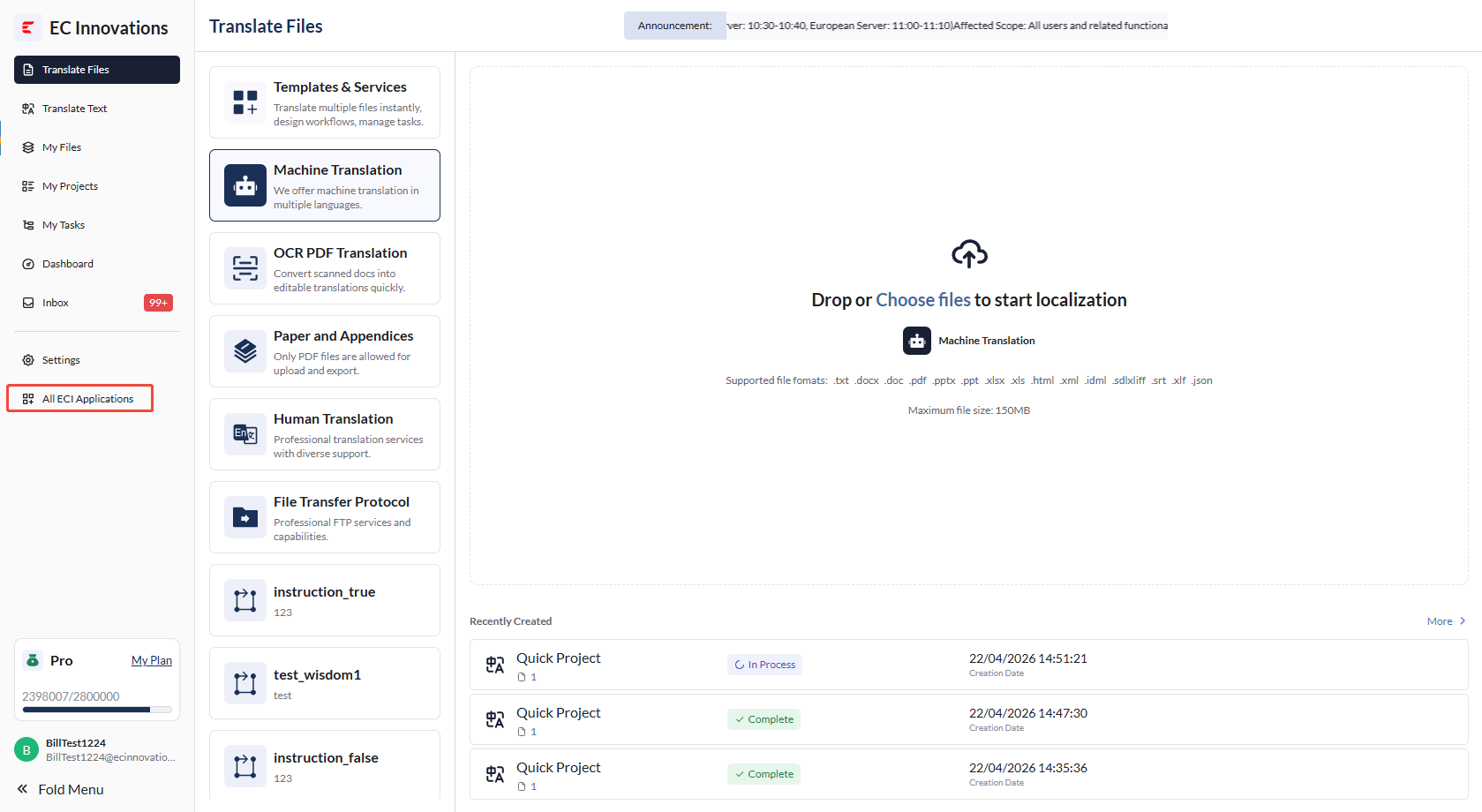
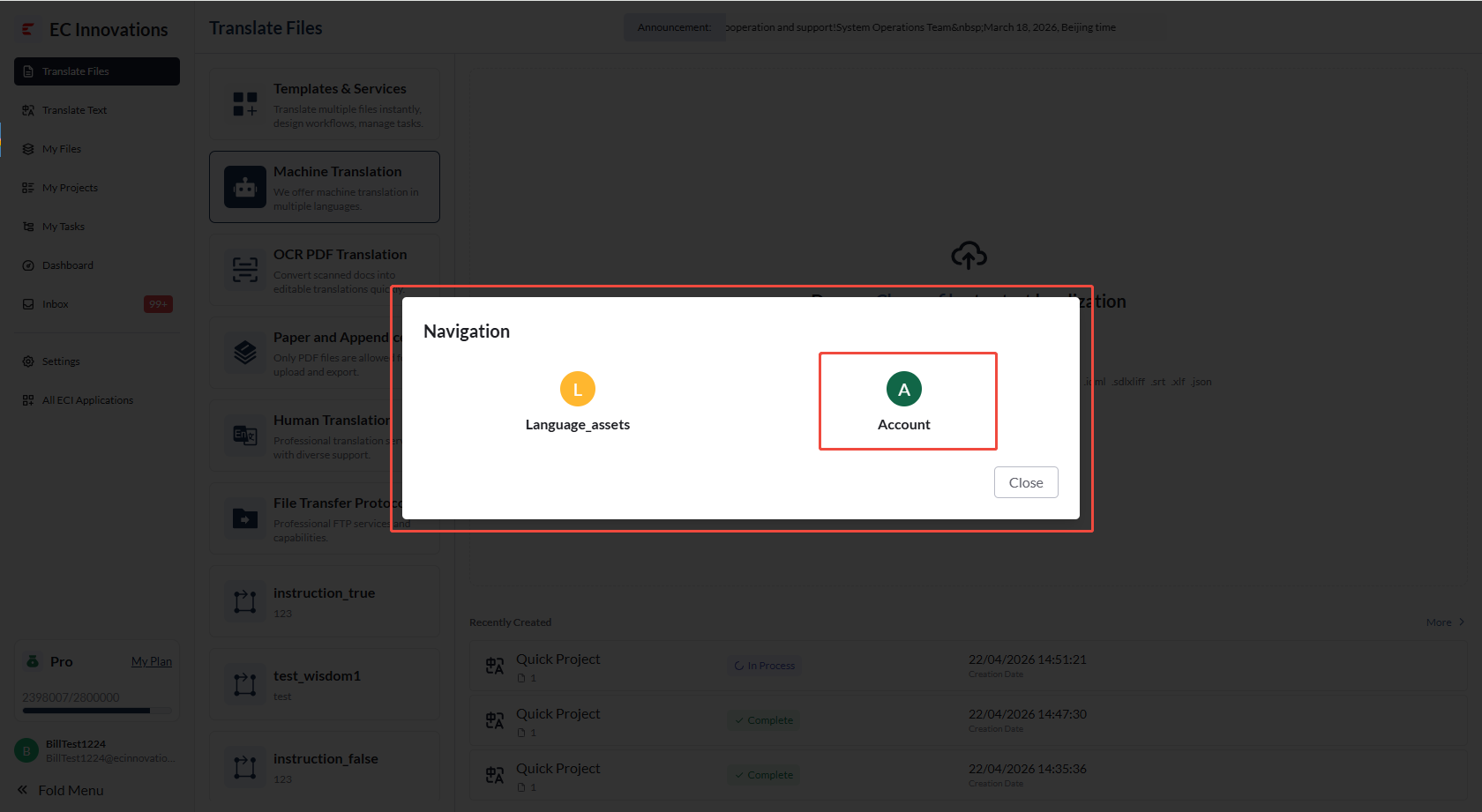
- User Management is a default platform service and does not require any advanced settings. You can click ‘All Applications’, then click ‘Account’ in the pop-up to enter the user module.
User Management List
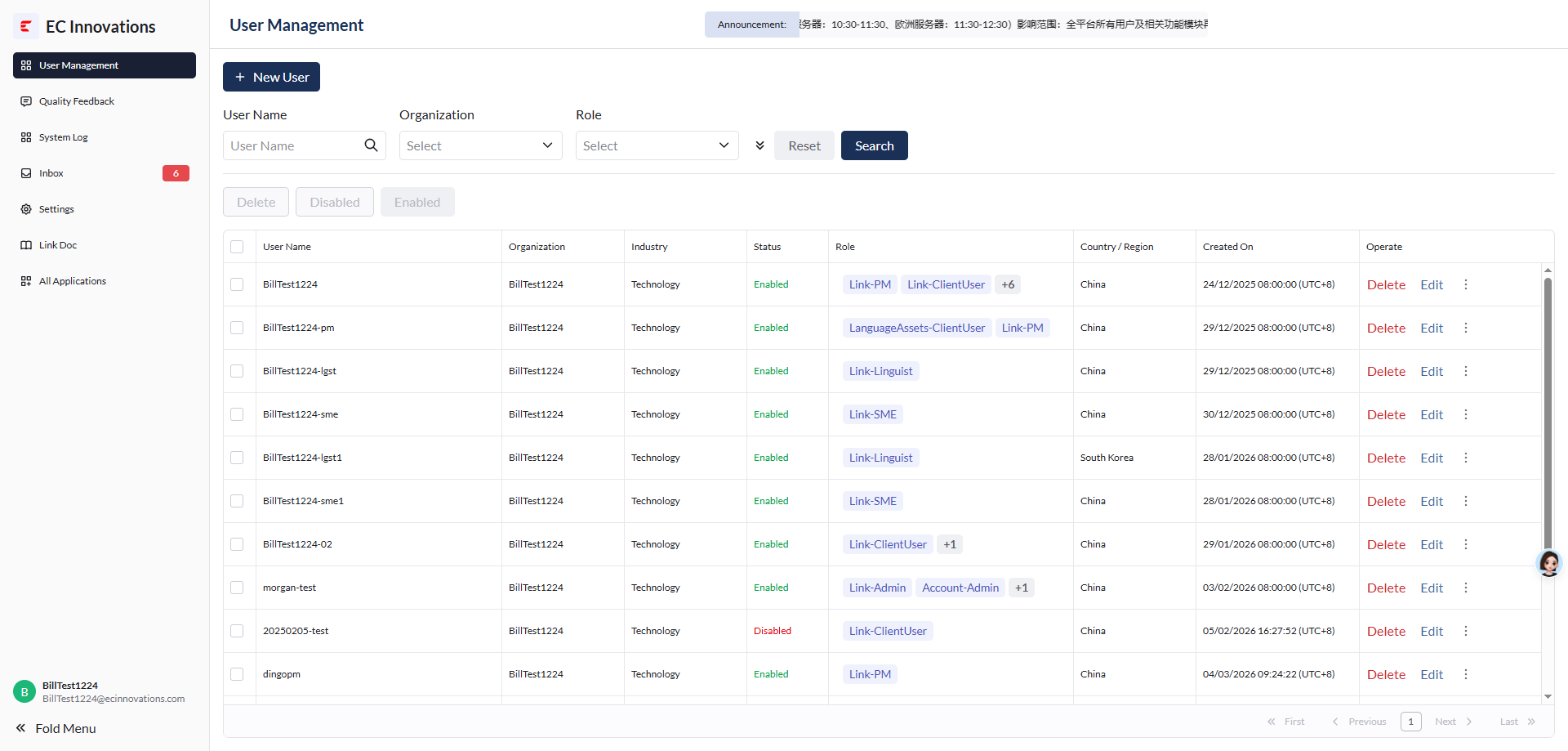
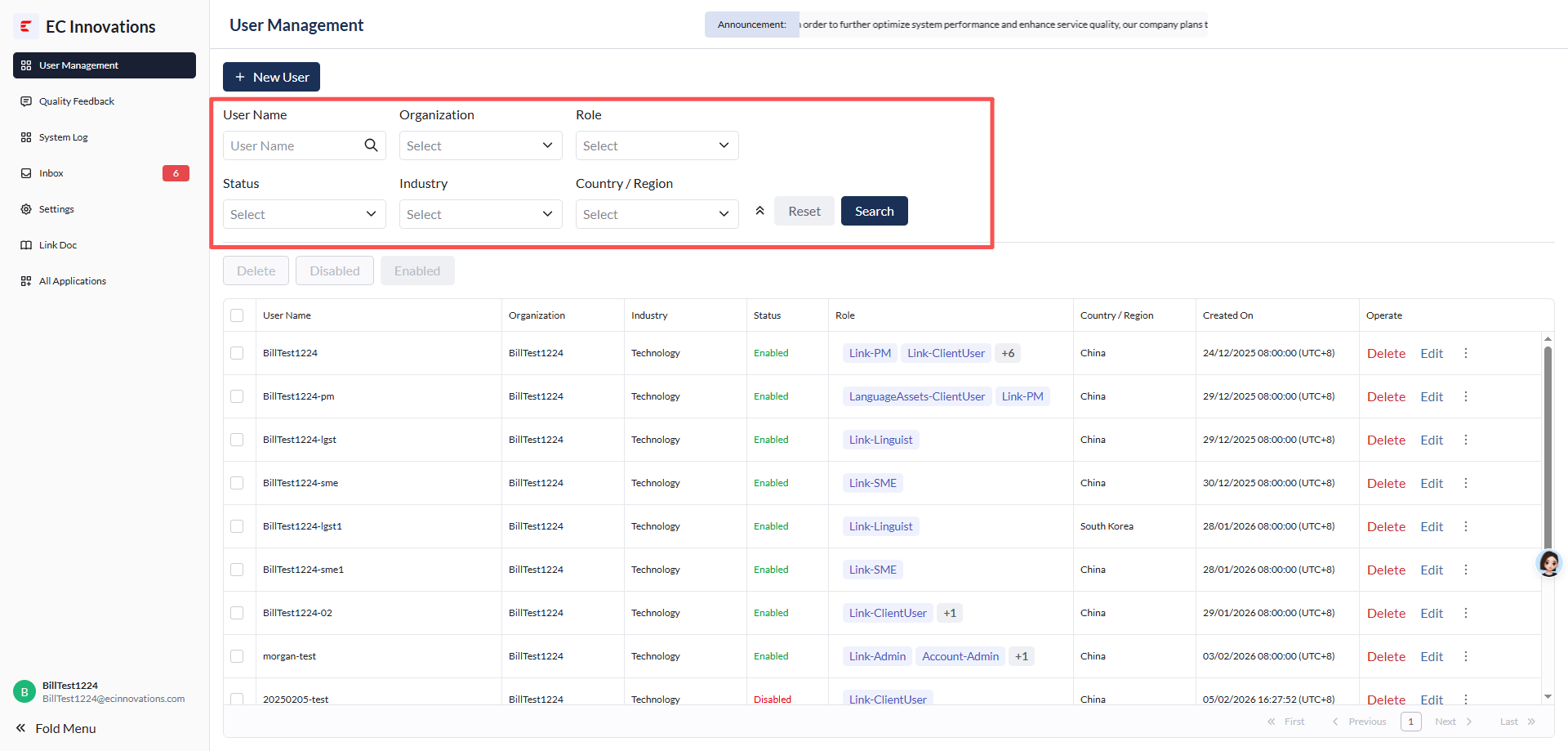
- Click ‘User Management’ in the left-side menu to open the user management list page. By default, the page displays all users under the current organization. You can search for users by user name, organization, role, industry, and region.
Bulk Actions
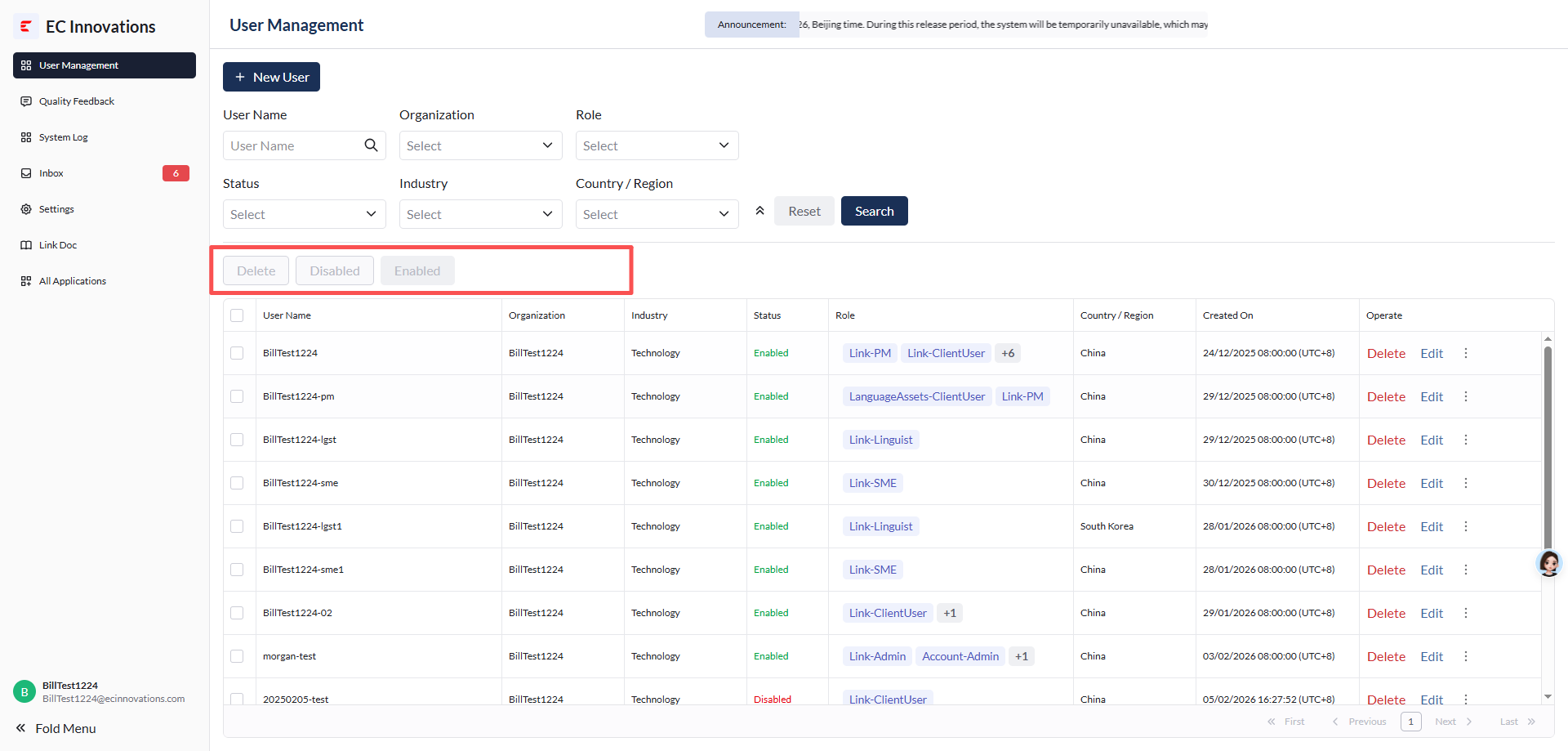
- You can select users using the checkboxes on the left side of the list, then perform bulk actions such as deleting, disabling, or enabling users.
Create a User
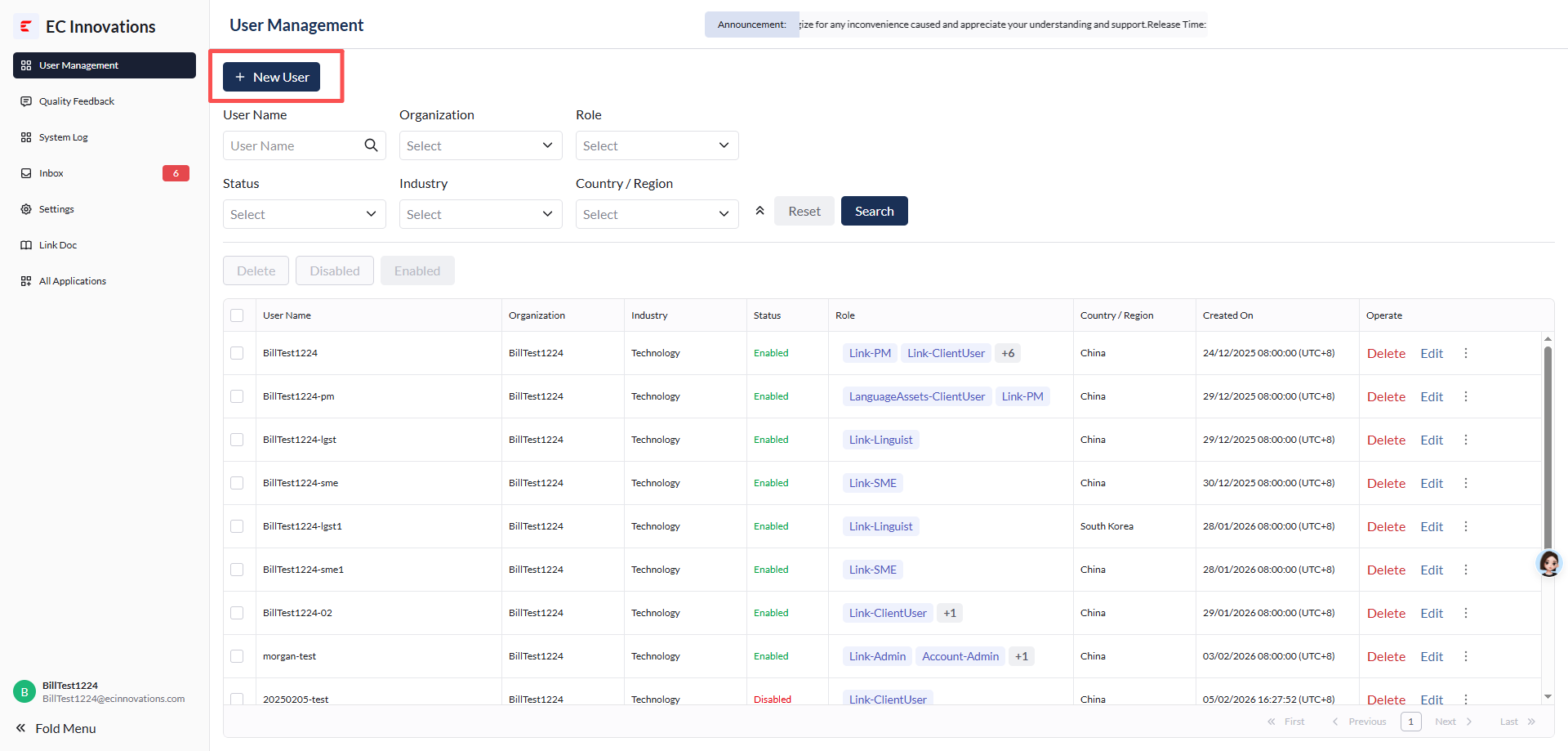
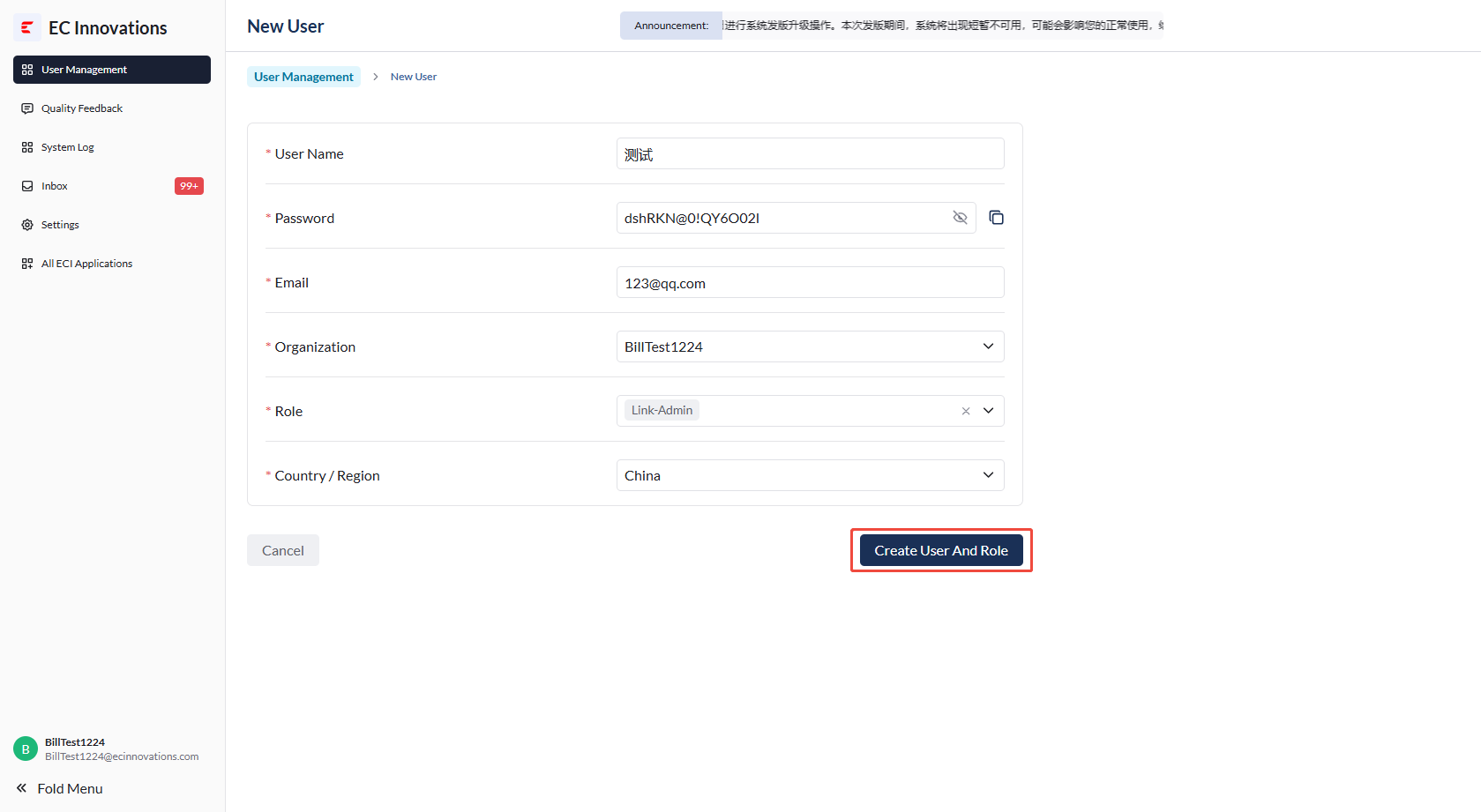
- Click ‘New User’ in the upper-left corner to open the user creation page. Enter the new user’s information, including user name, password, email address, organization, role, and region.
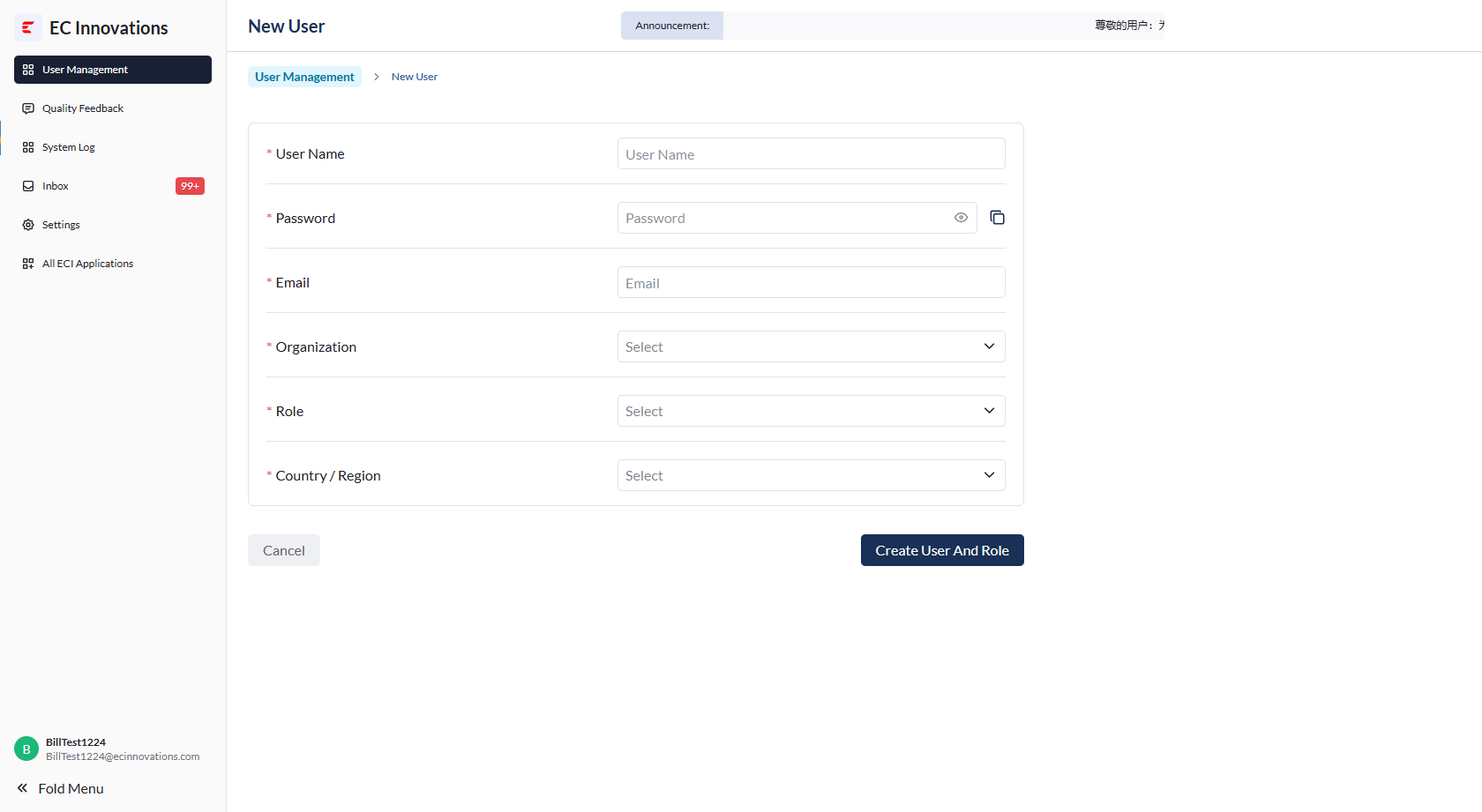
- The system automatically generates a random password for you. Simply select the password input field.
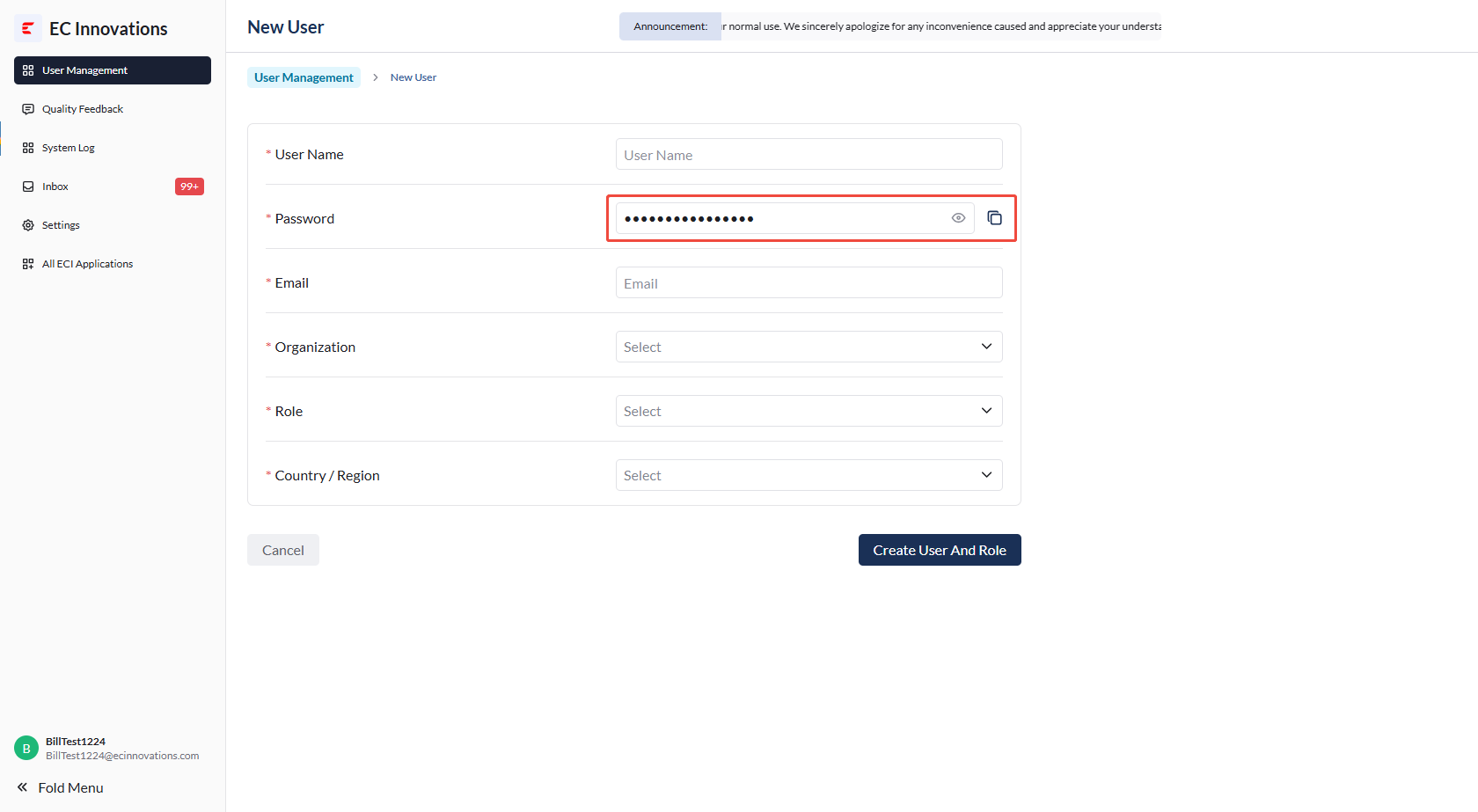
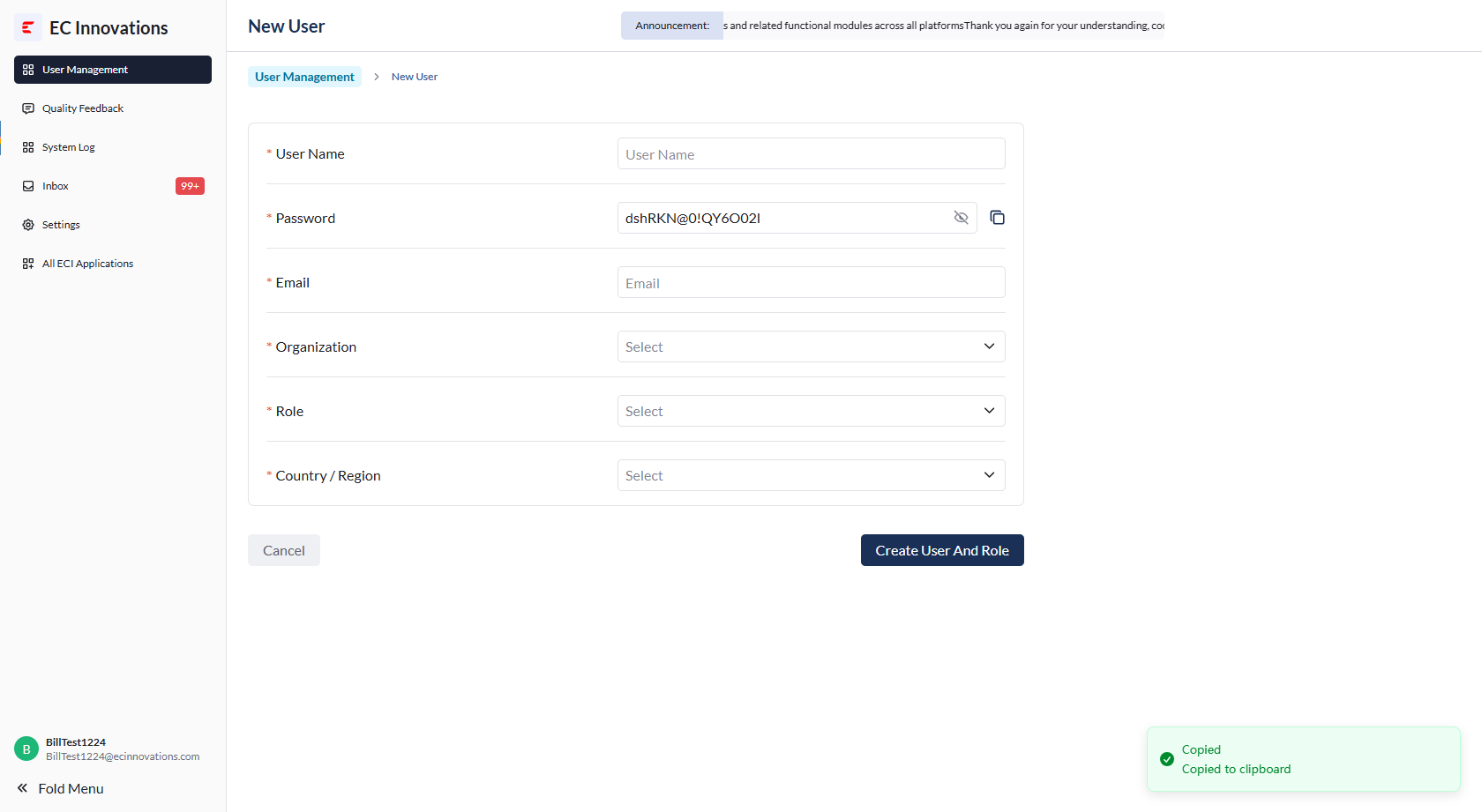
- You can copy the password using the button on the right side of the password field, or enter a password manually.
- After entering all required information, click ‘Create User And Role’ to create the new user.
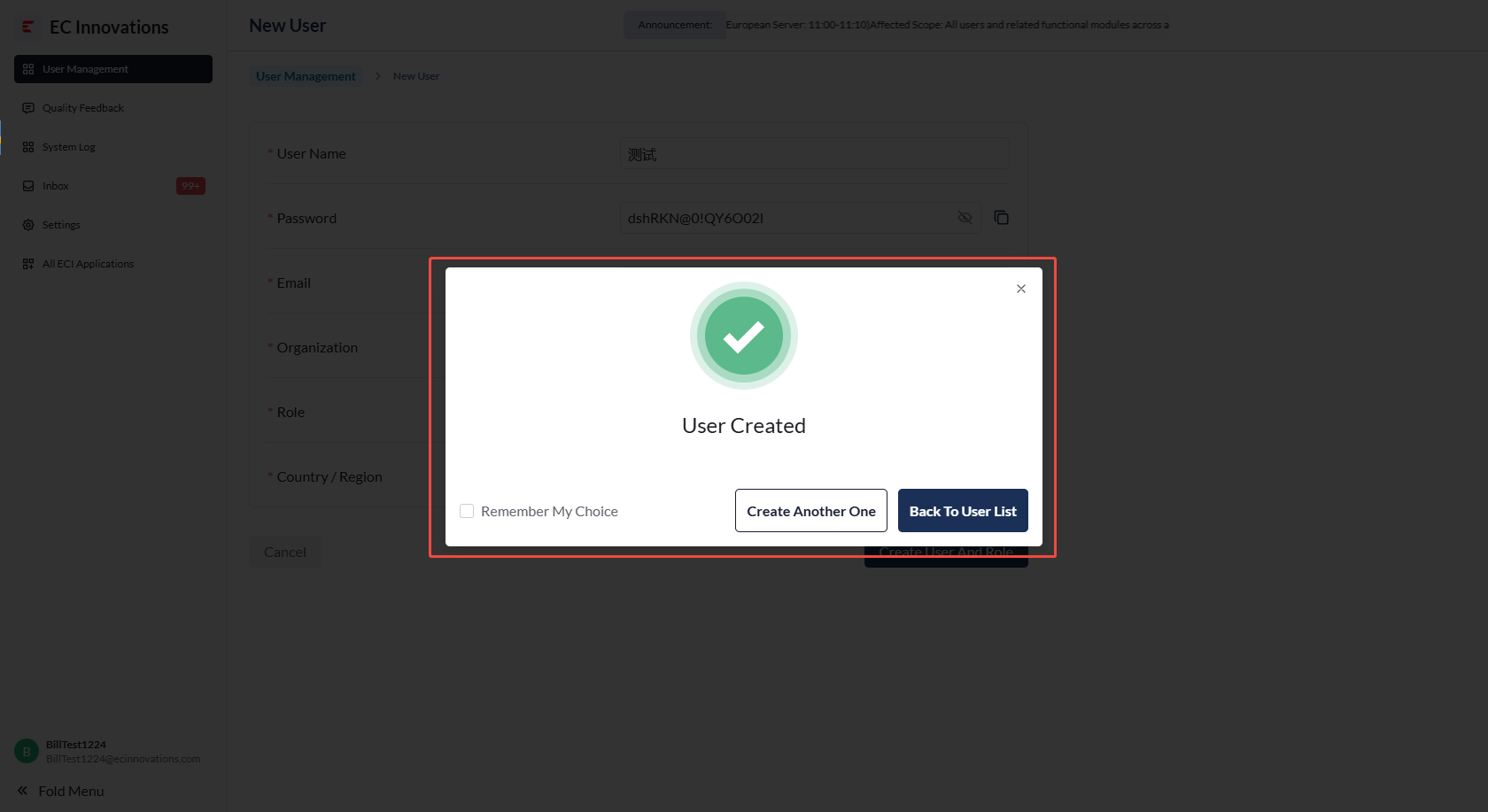
- After the new user is created, you can either continue creating another user or return to the user list page.
Delete a User
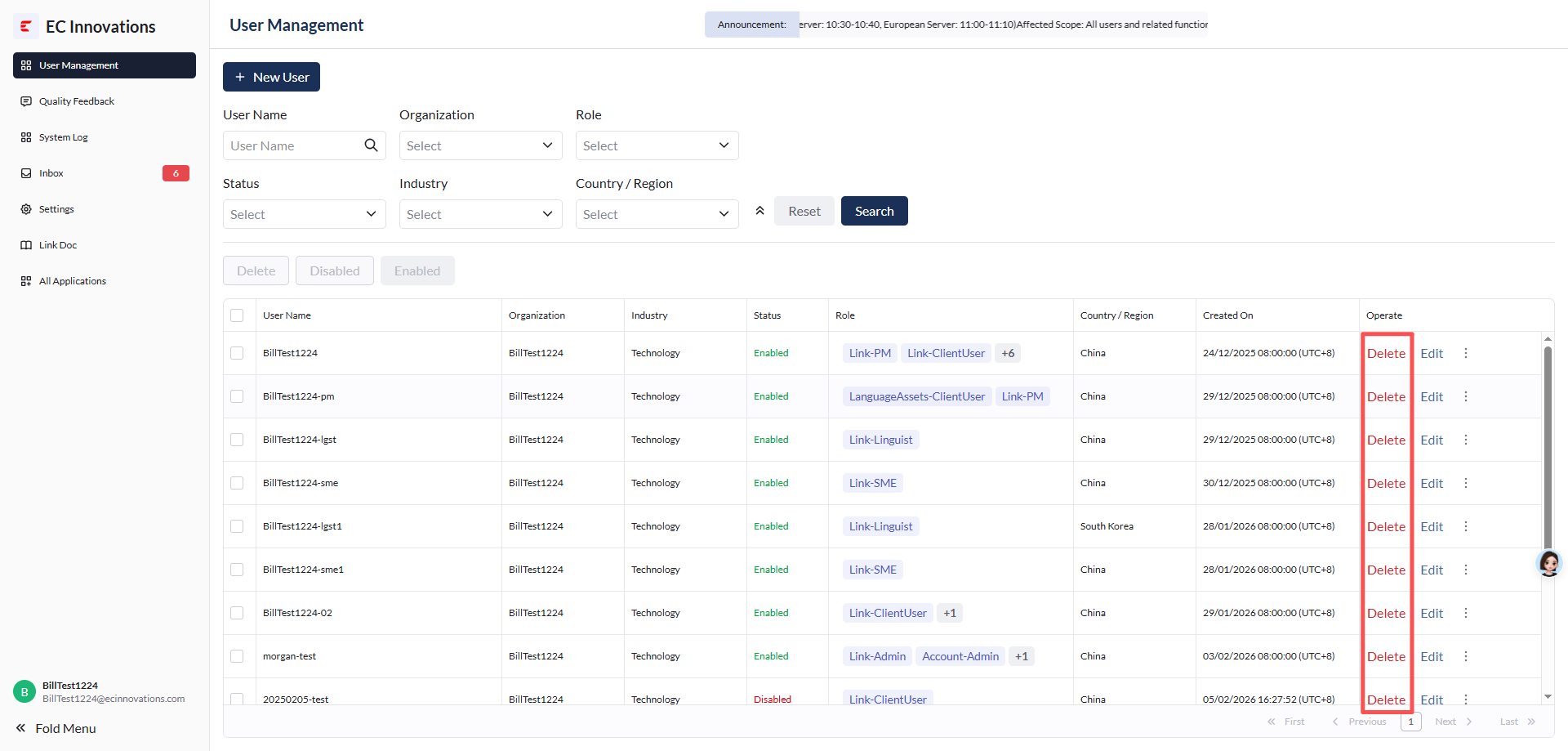
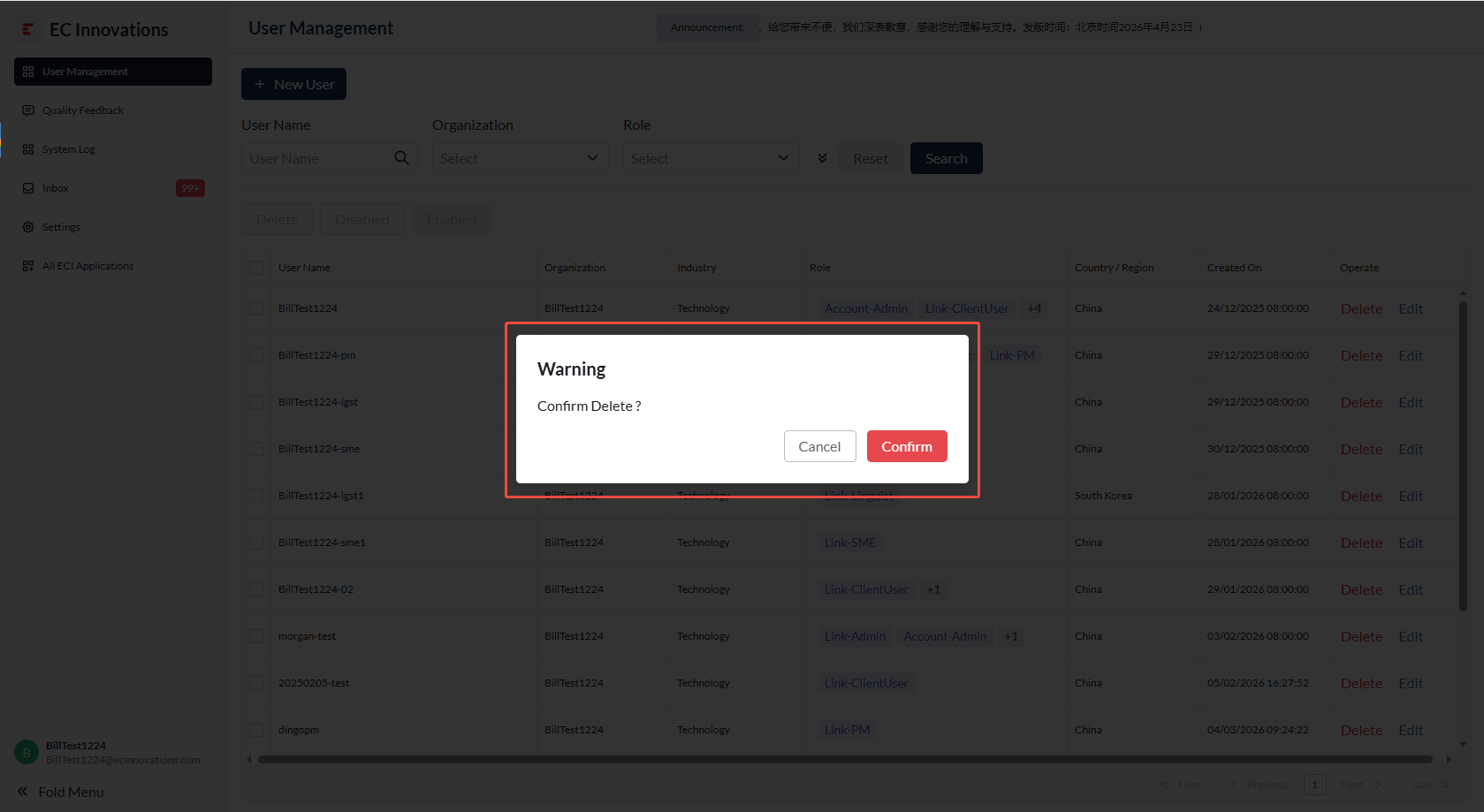
- Click ‘Delete’ in the action column on the right side of the user list to delete a user.
Edit a User
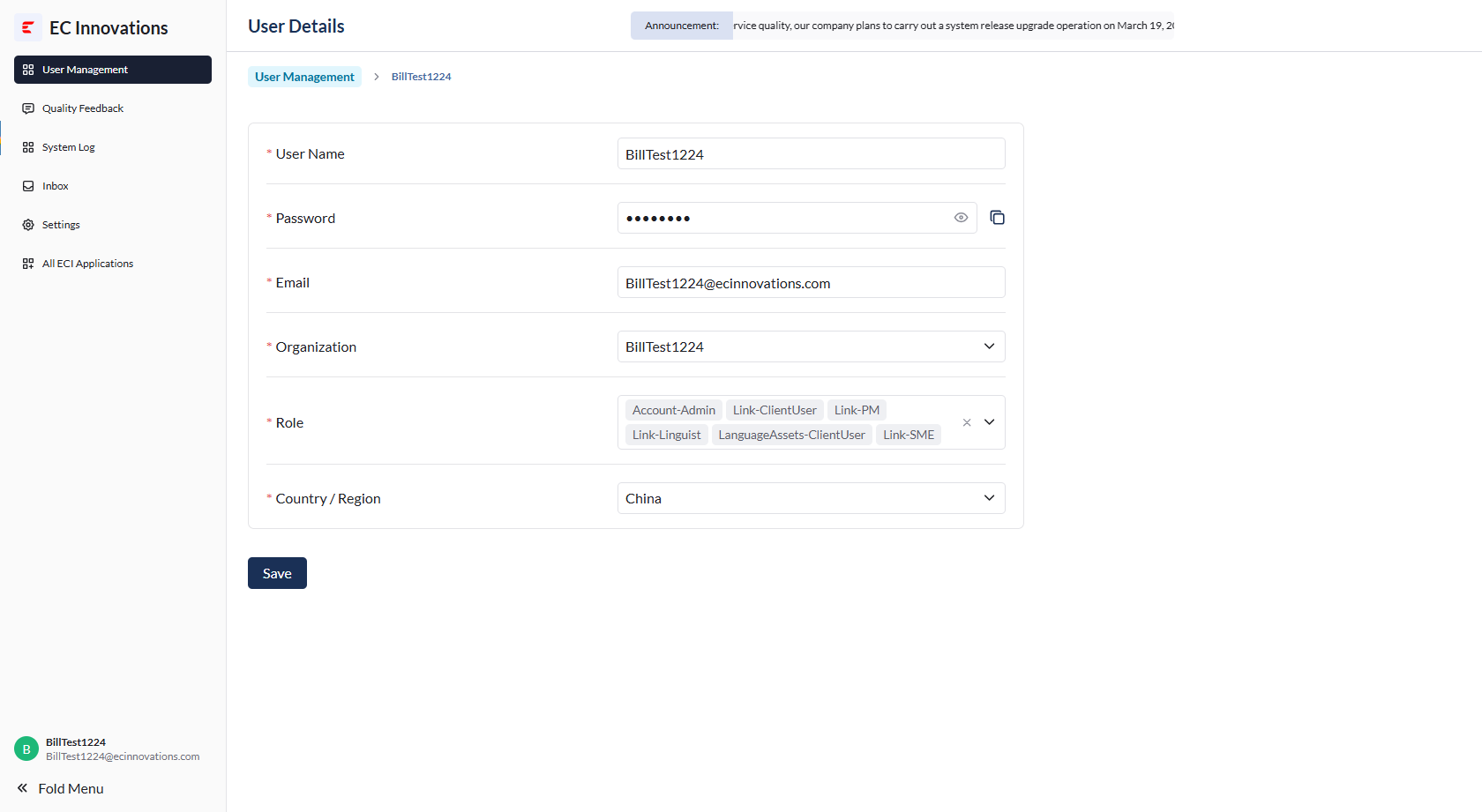
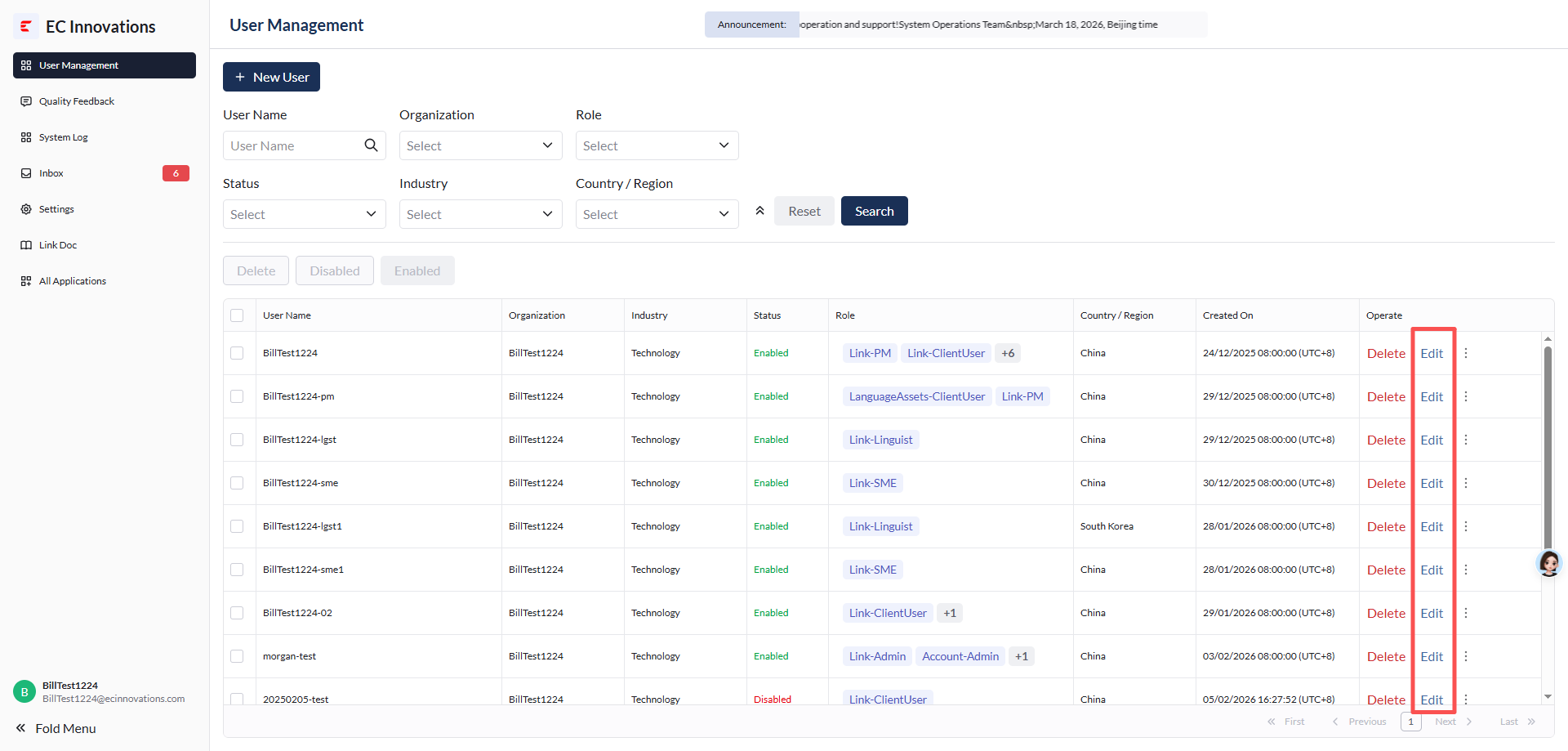
- Click ‘Edit’ in the action column on the right side of the user list to open the user information editing page.
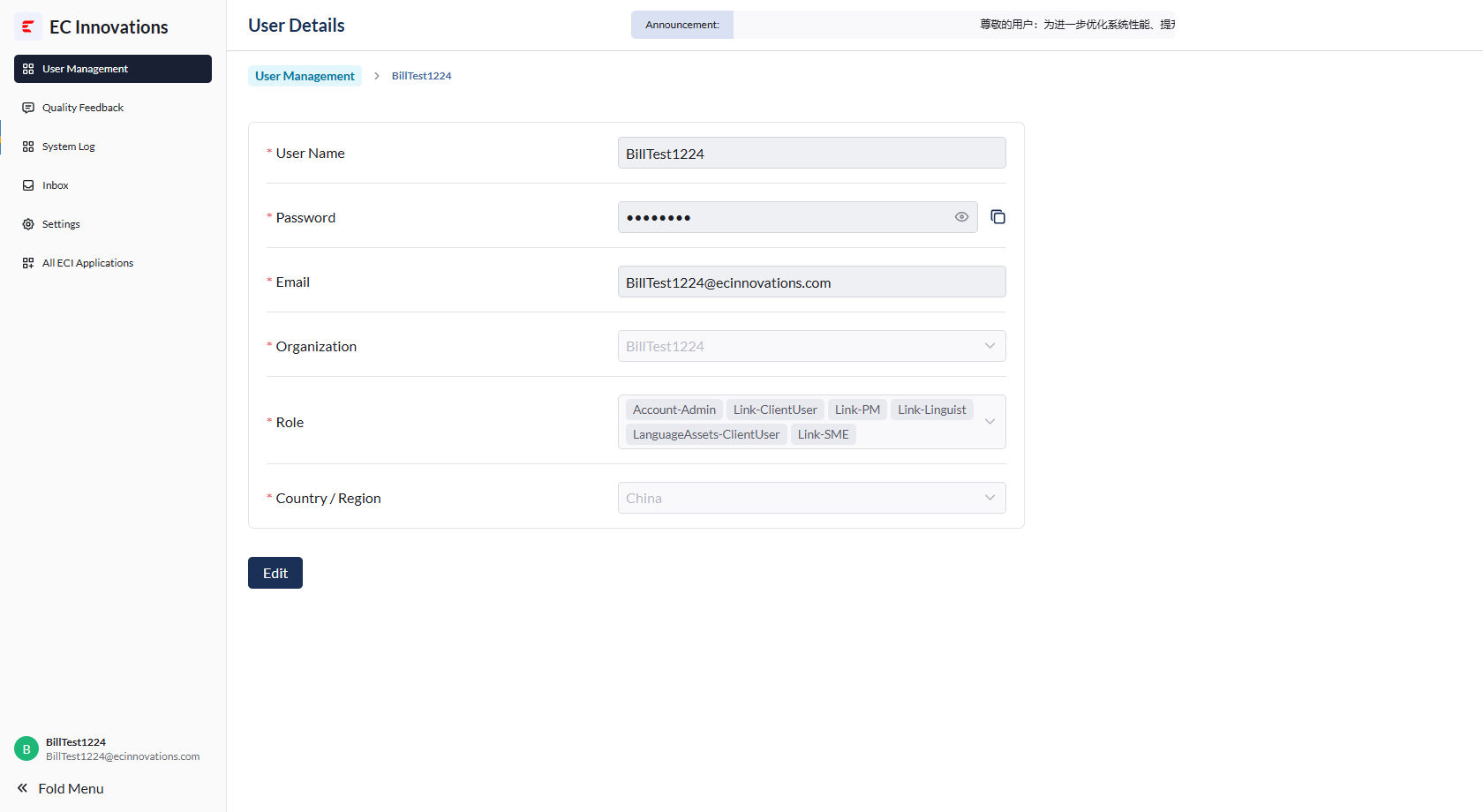
- You can edit user information, including user name, password, email address, organization, role, and region.