Messages
Introduction
Messages are an in-system inbox that helps you receive the latest project updates inside the platform.
Tabs
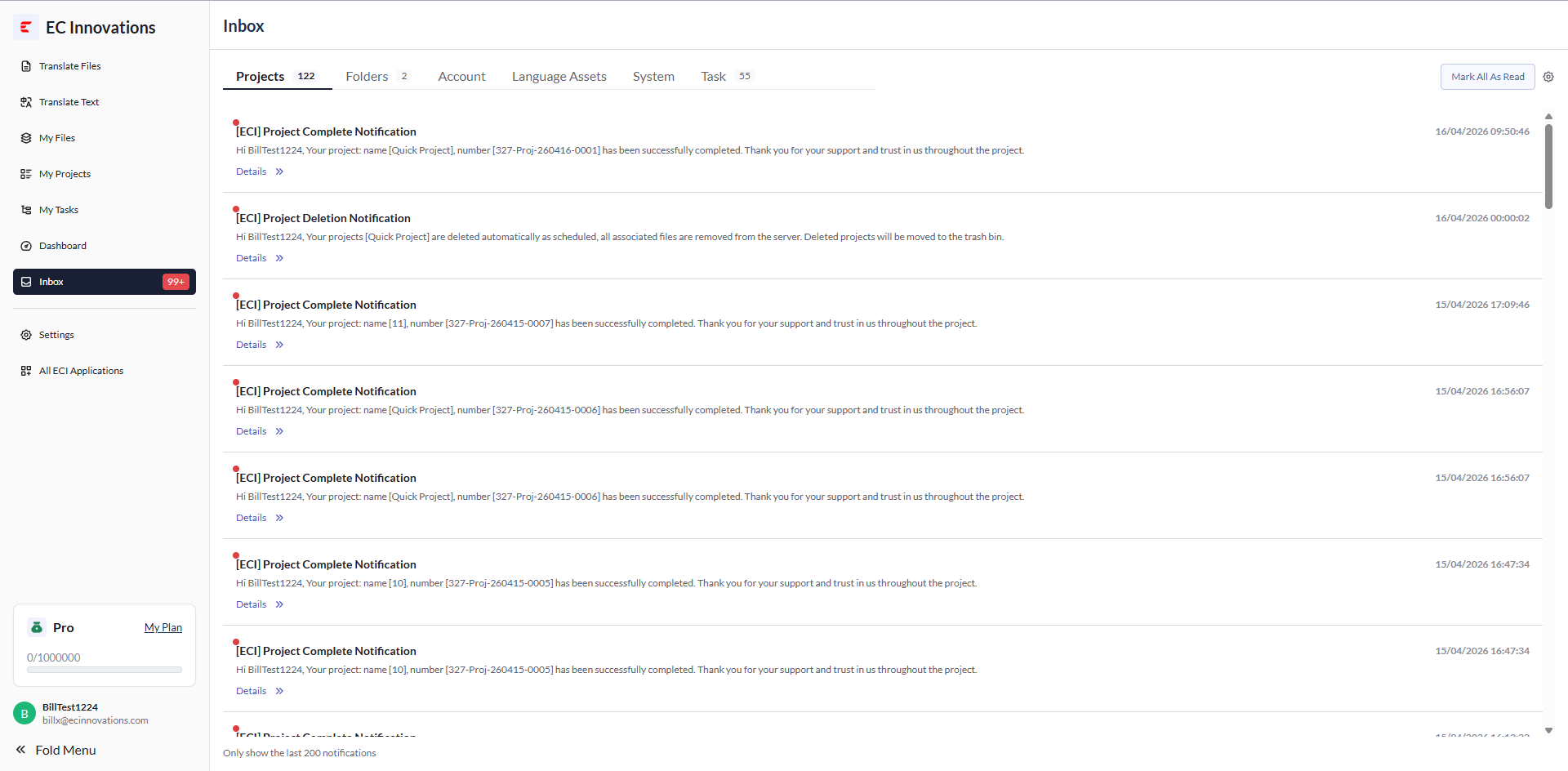
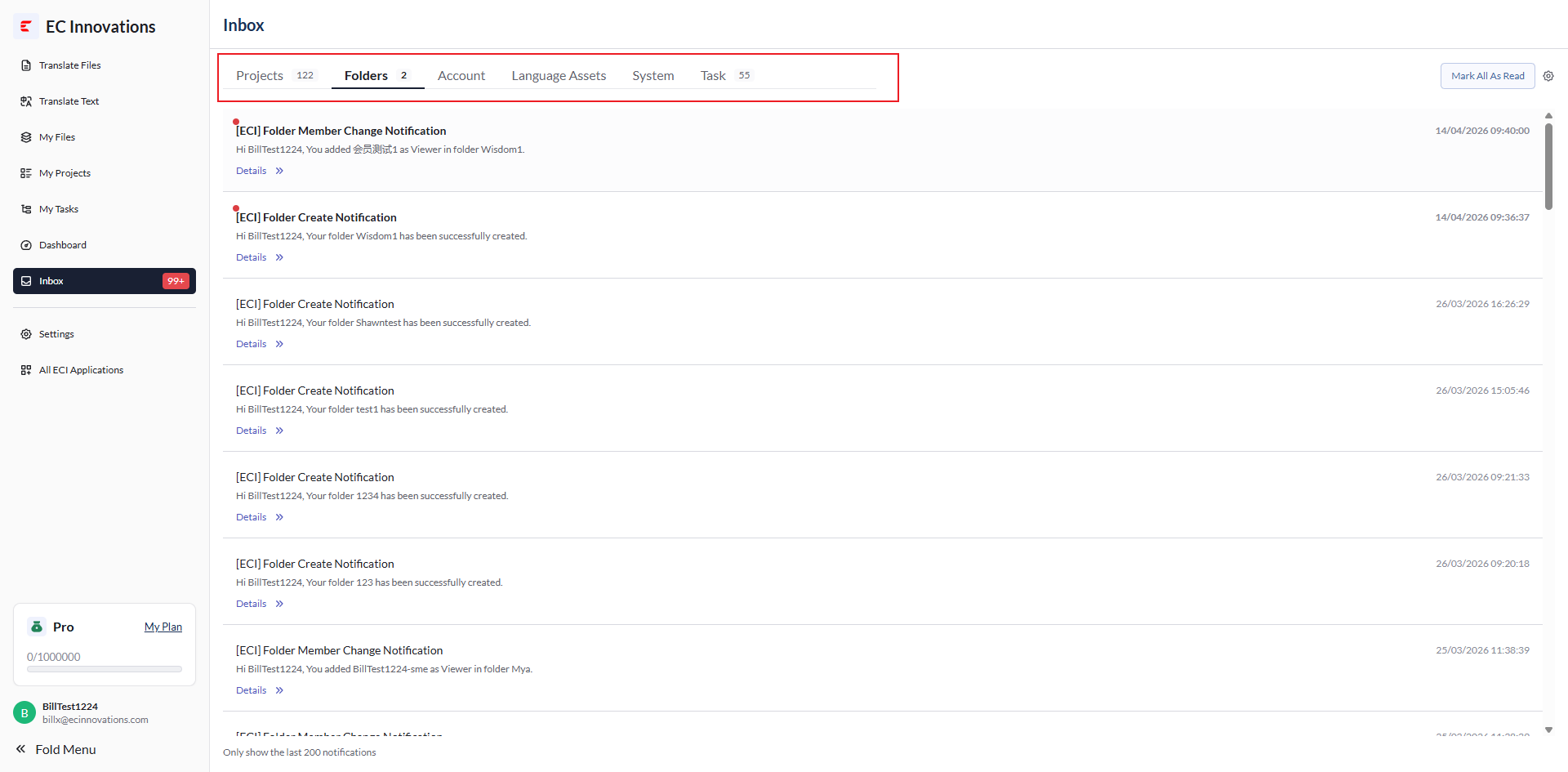
You can switch between ‘Projects’, ‘Folders’, ‘Account’, ‘Language Assets’, ‘System’, and ‘Task’ to view different types of messages.
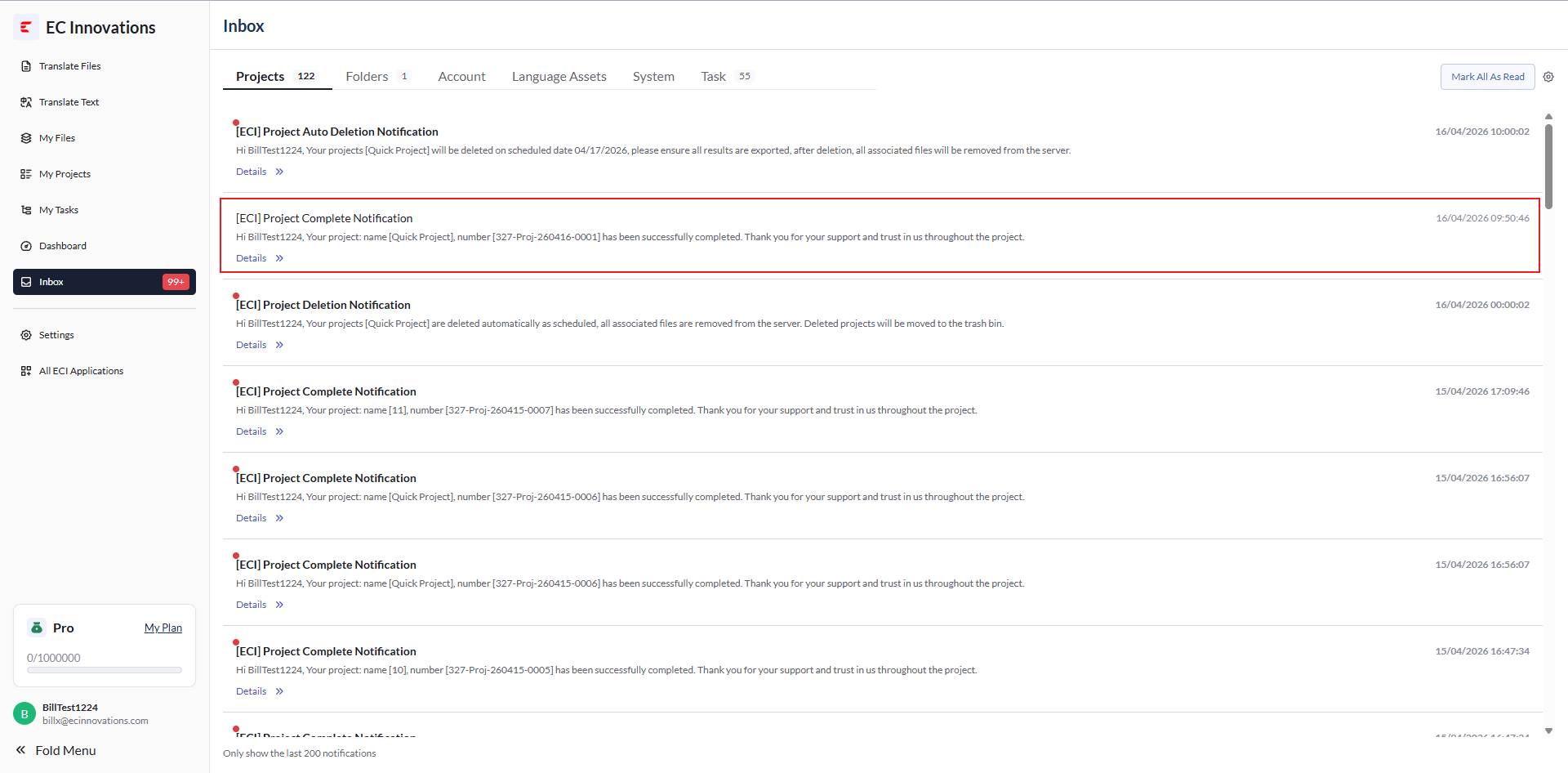
Details
You can click ‘Details’ to go to the related operation page for the message.
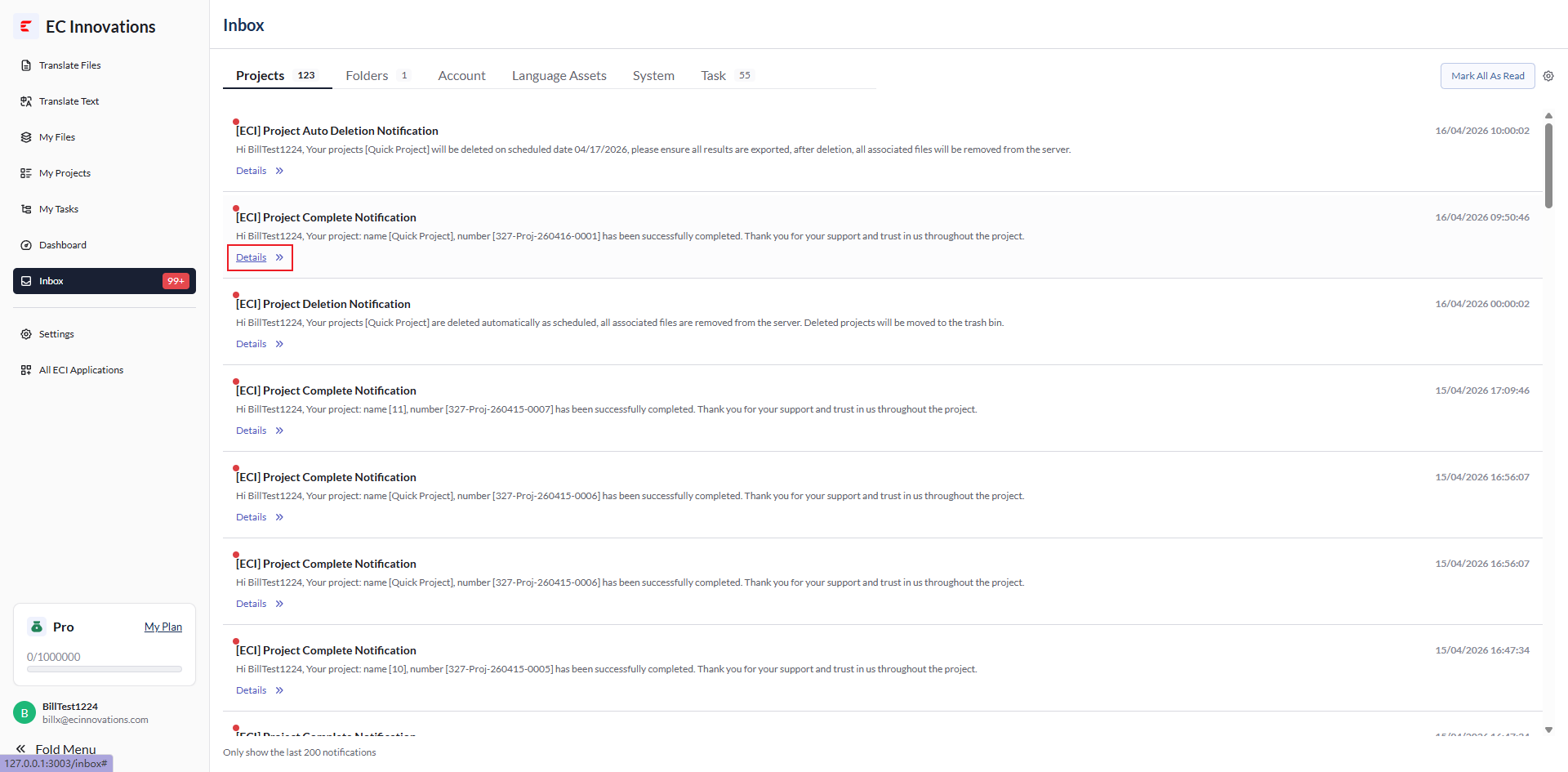
After you are redirected successfully, the message will be marked as read, making it easier to tell which messages have already been read.
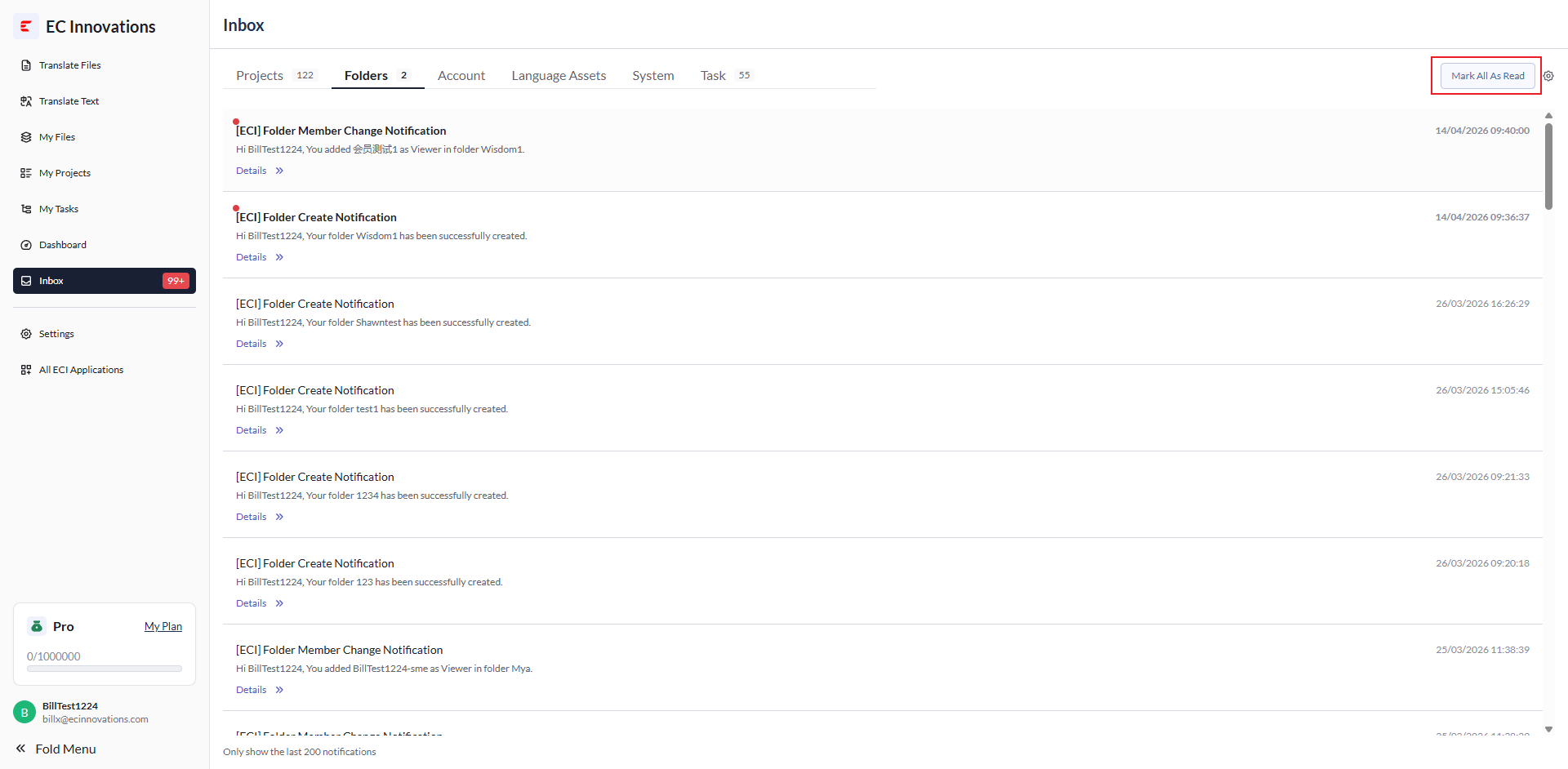
You can also click ‘Mark All As Read’ to mark all messages as read.
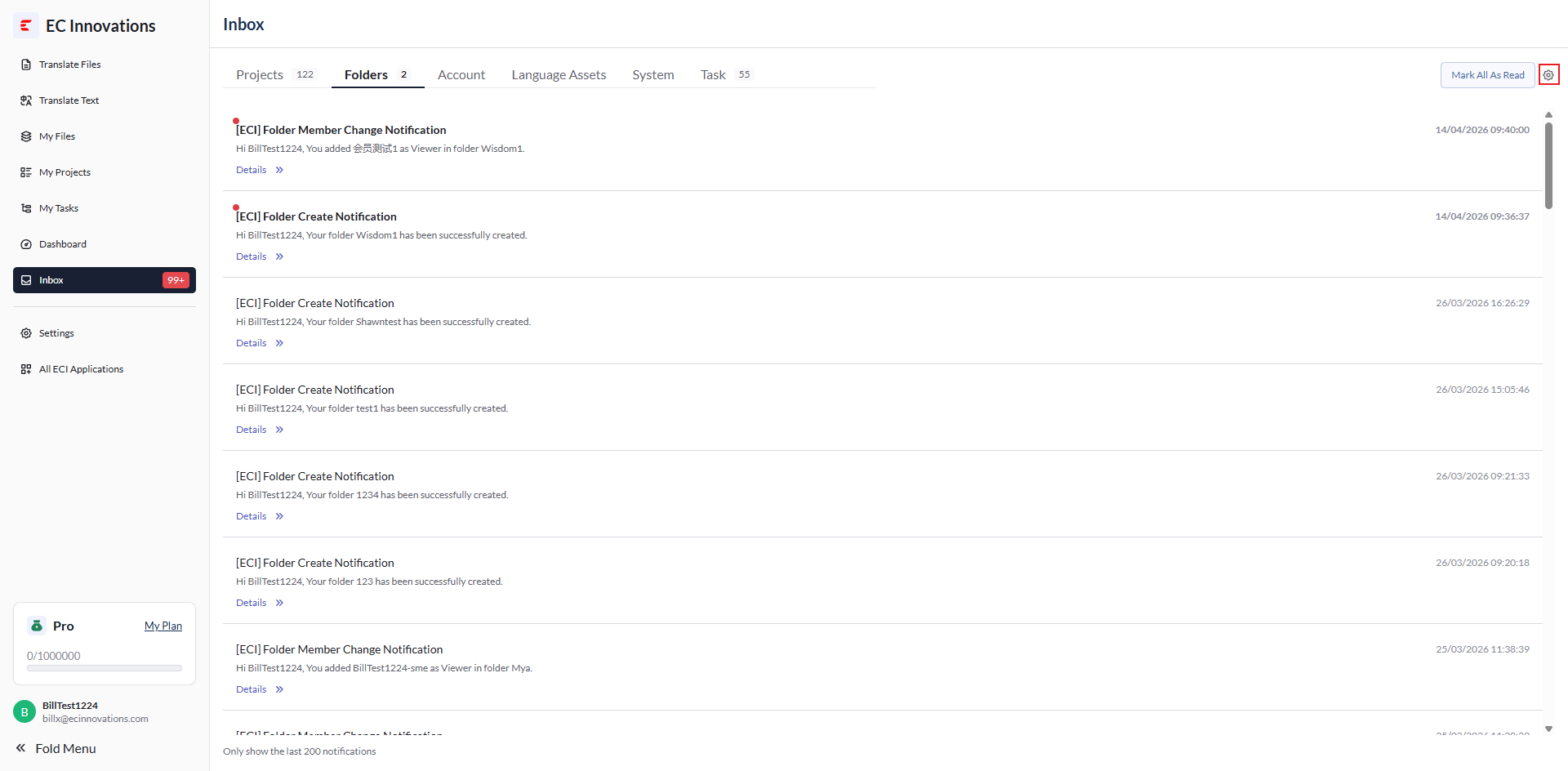
Settings
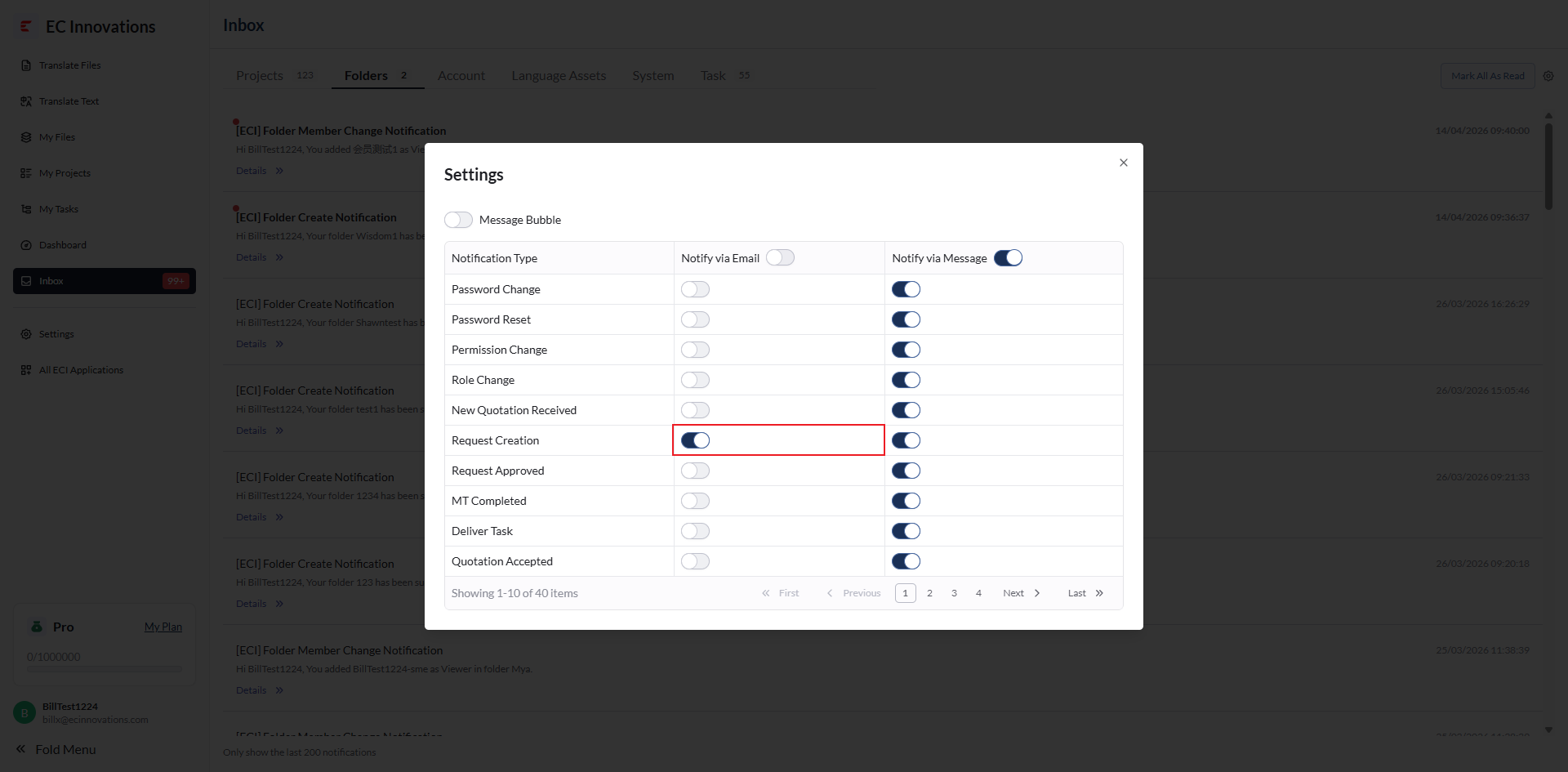
You can click ‘Settings’ to adjust how you receive messages.
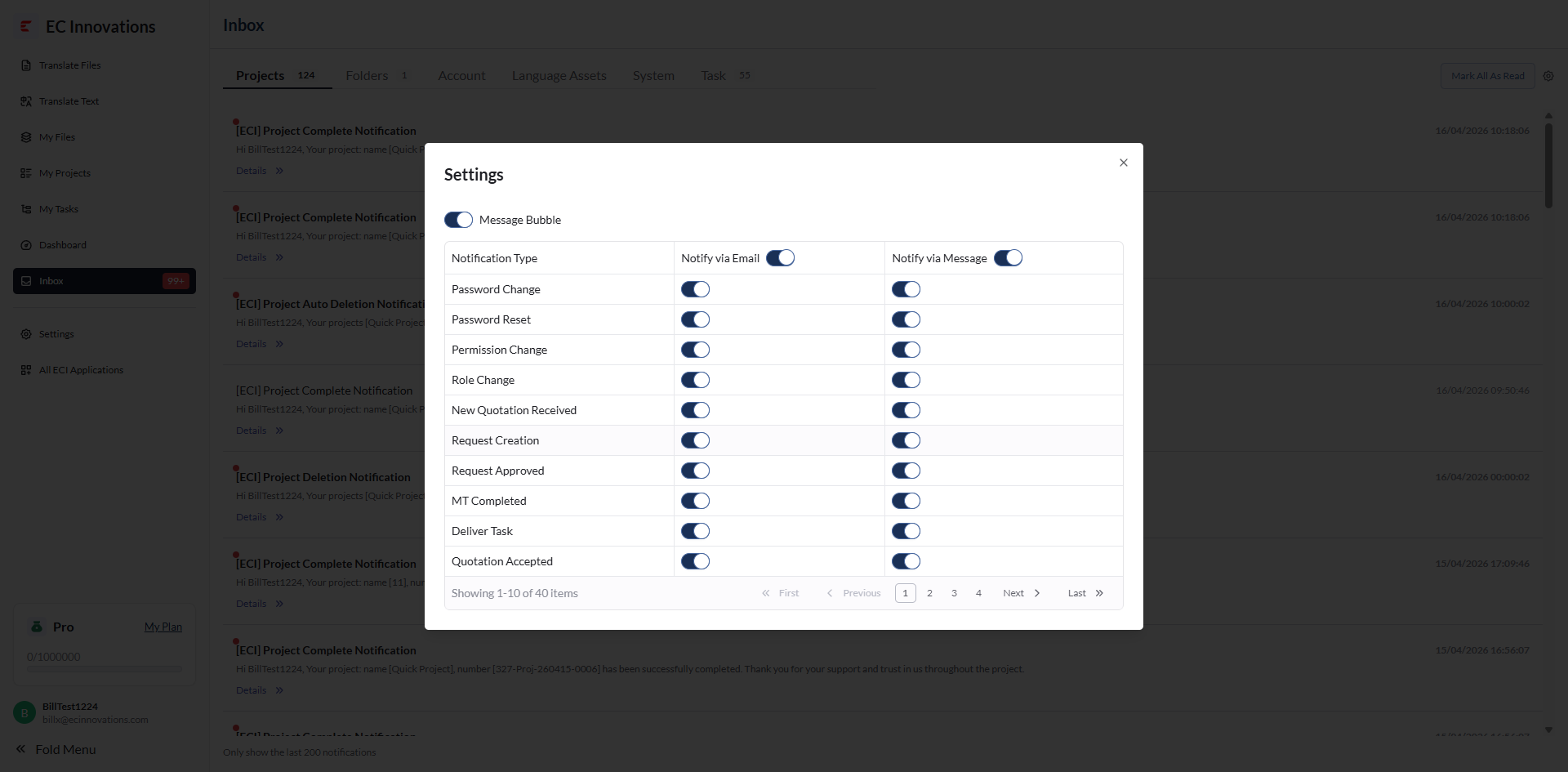
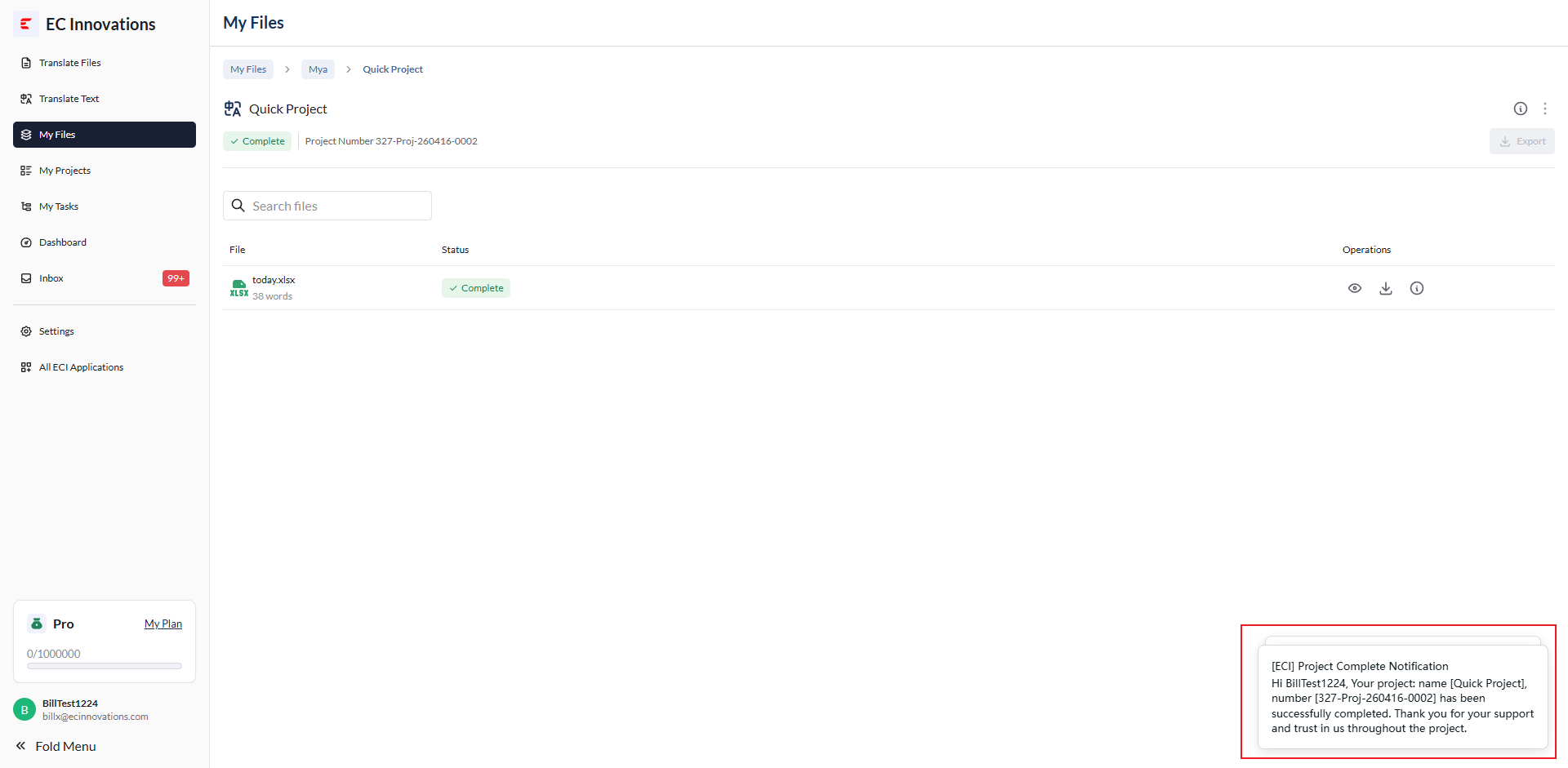
‘Message Bubble’: You can turn ‘Message Bubble’ on or off to control whether messages are displayed as bubbles inside the system, making them easier to view.
Prompt shown when enabled:
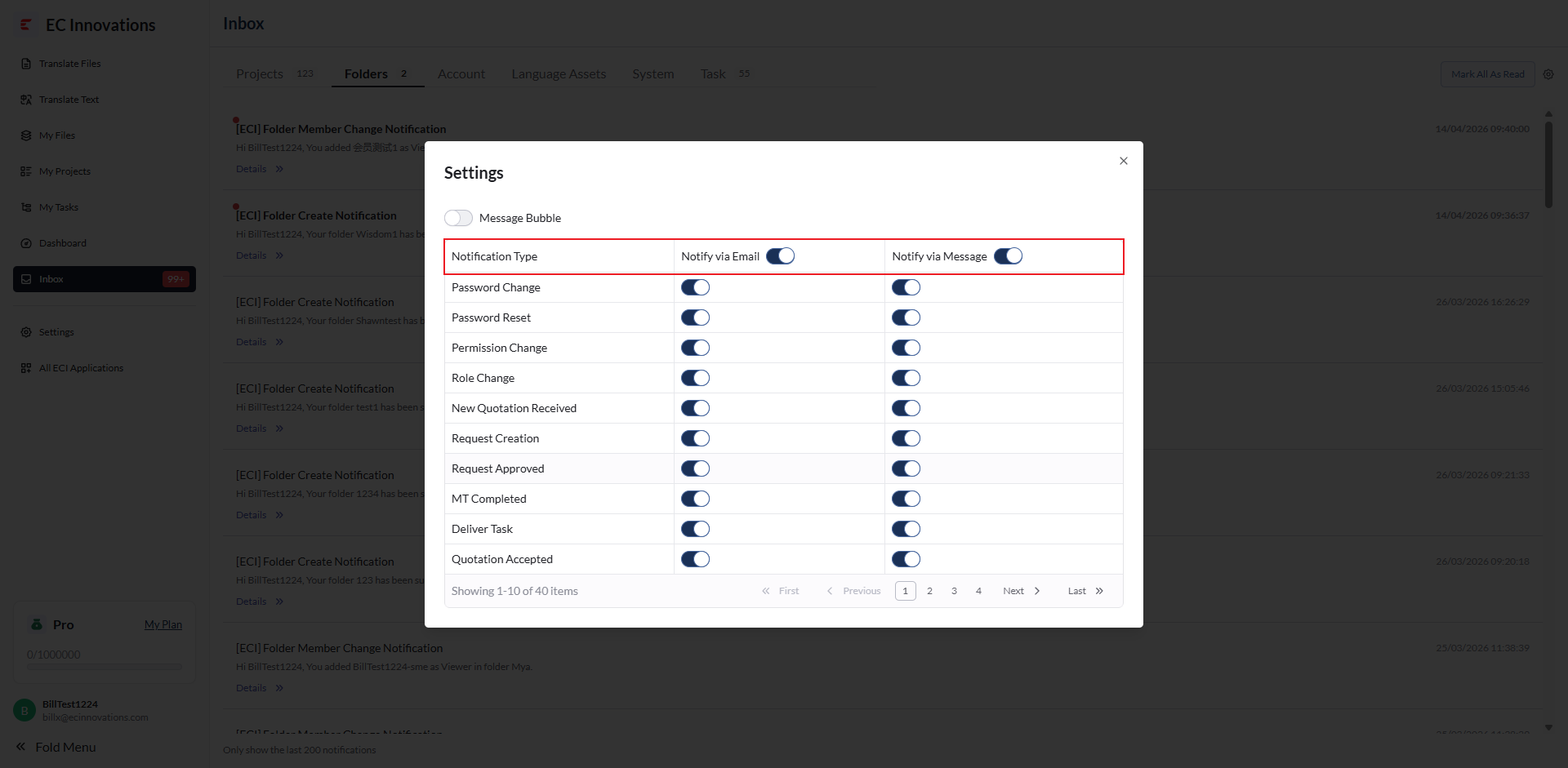
‘Notification Type’: You can turn ‘Notify via Email’ and ‘Notify via Message’ on or off to adjust how you receive messages.
Turning ‘Notify via Email’ or ‘Notify via Message’ on or off will enable or disable all messages of the corresponding type.
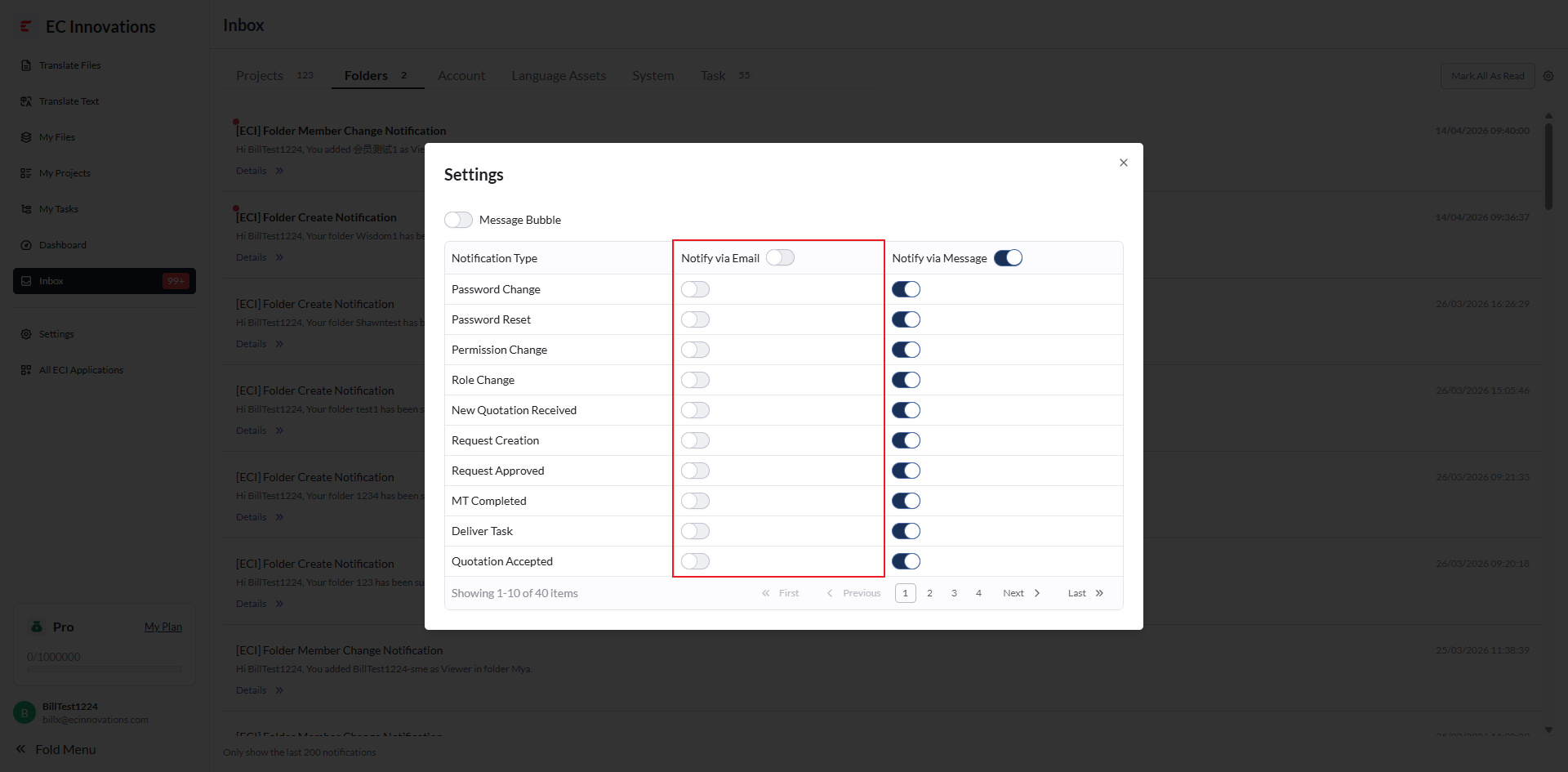
You can also turn individual message items on or off separately.