Human Translate
Introduction
- After you select human translation and upload your files to start the workflow, your translation workflow will be routed to the PM. The PM will then split the workflow into separate translation tasks and assign translators to handle them. For more details, see TMS Workflow Management. Users can click ‘Human Translation’ to start the translation workflow.
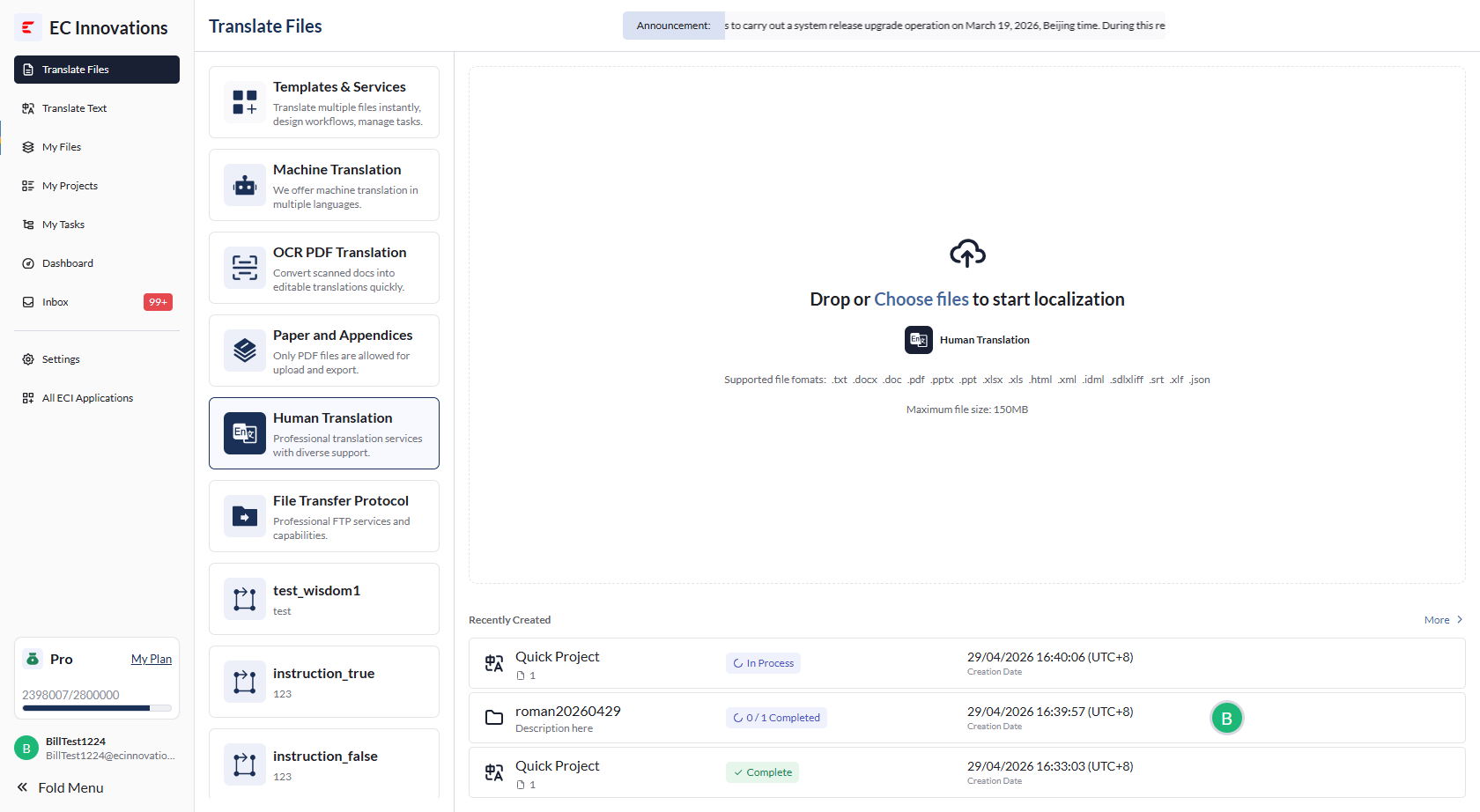
Upload Files
- Same as uploading files for AI Translation (Machine Translation).
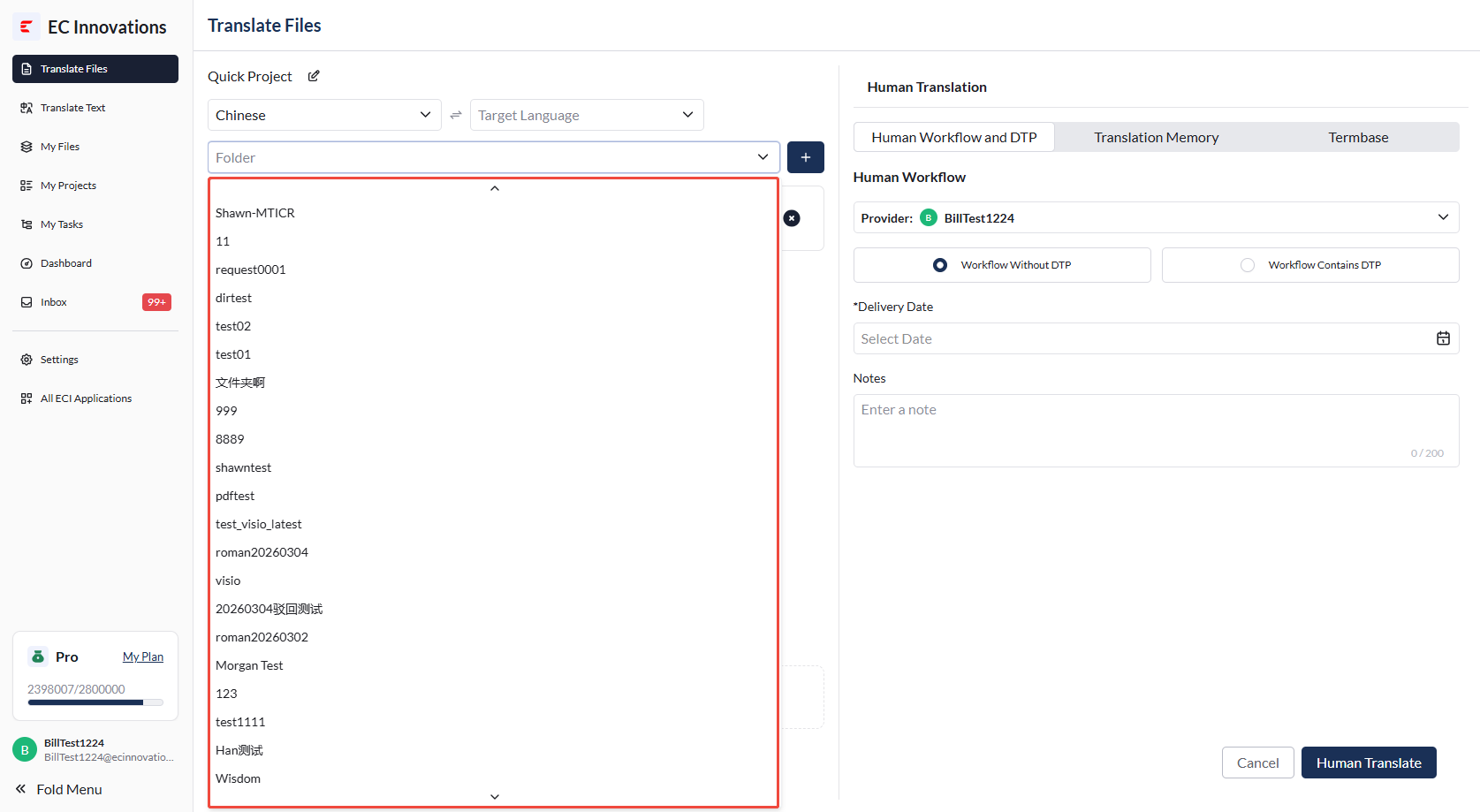
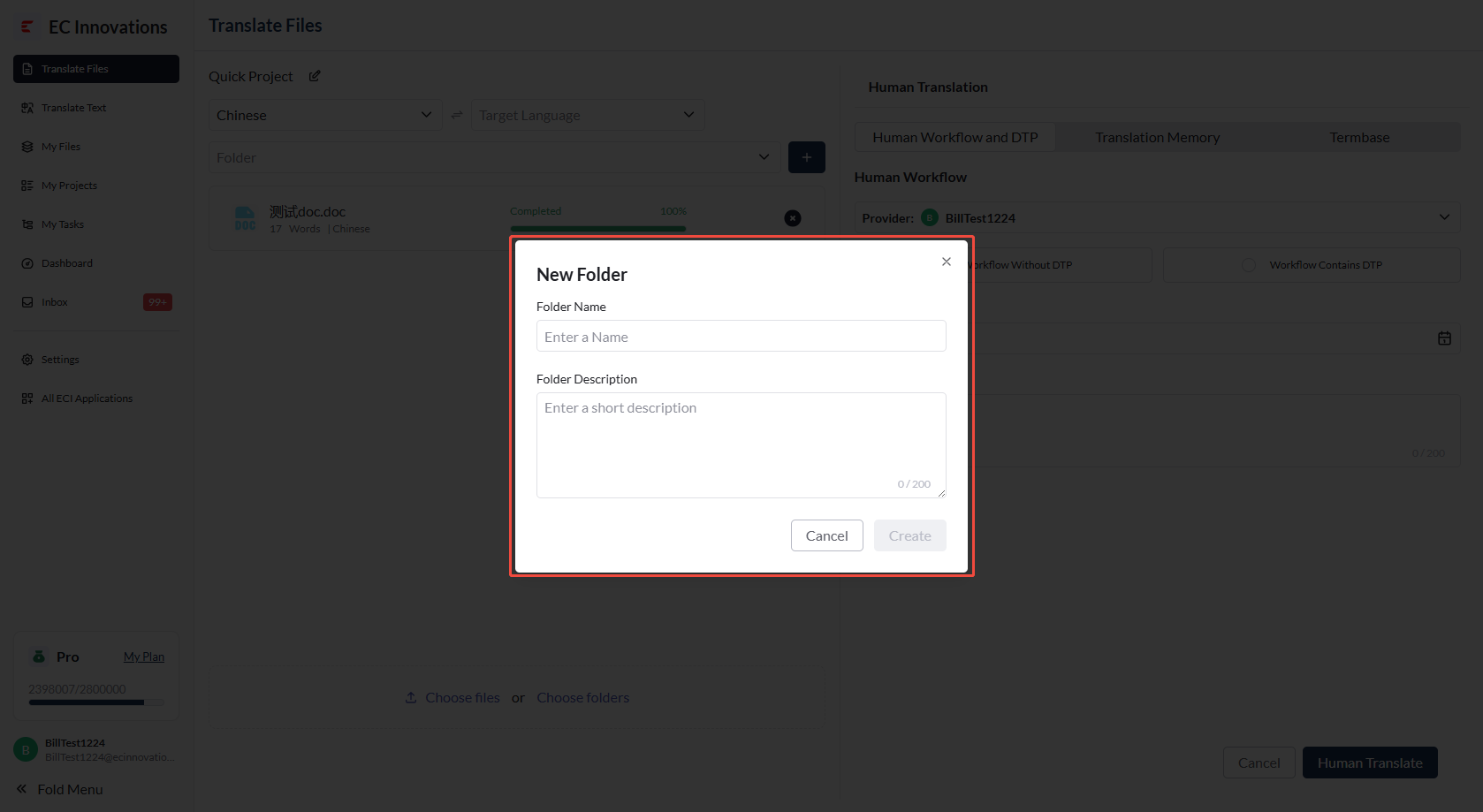
Select or Create a Folder
- When creating a project, you can select an existing folder or create a new one.
Advanced Settings for Human Translation
Human Workflow and DTP Settings
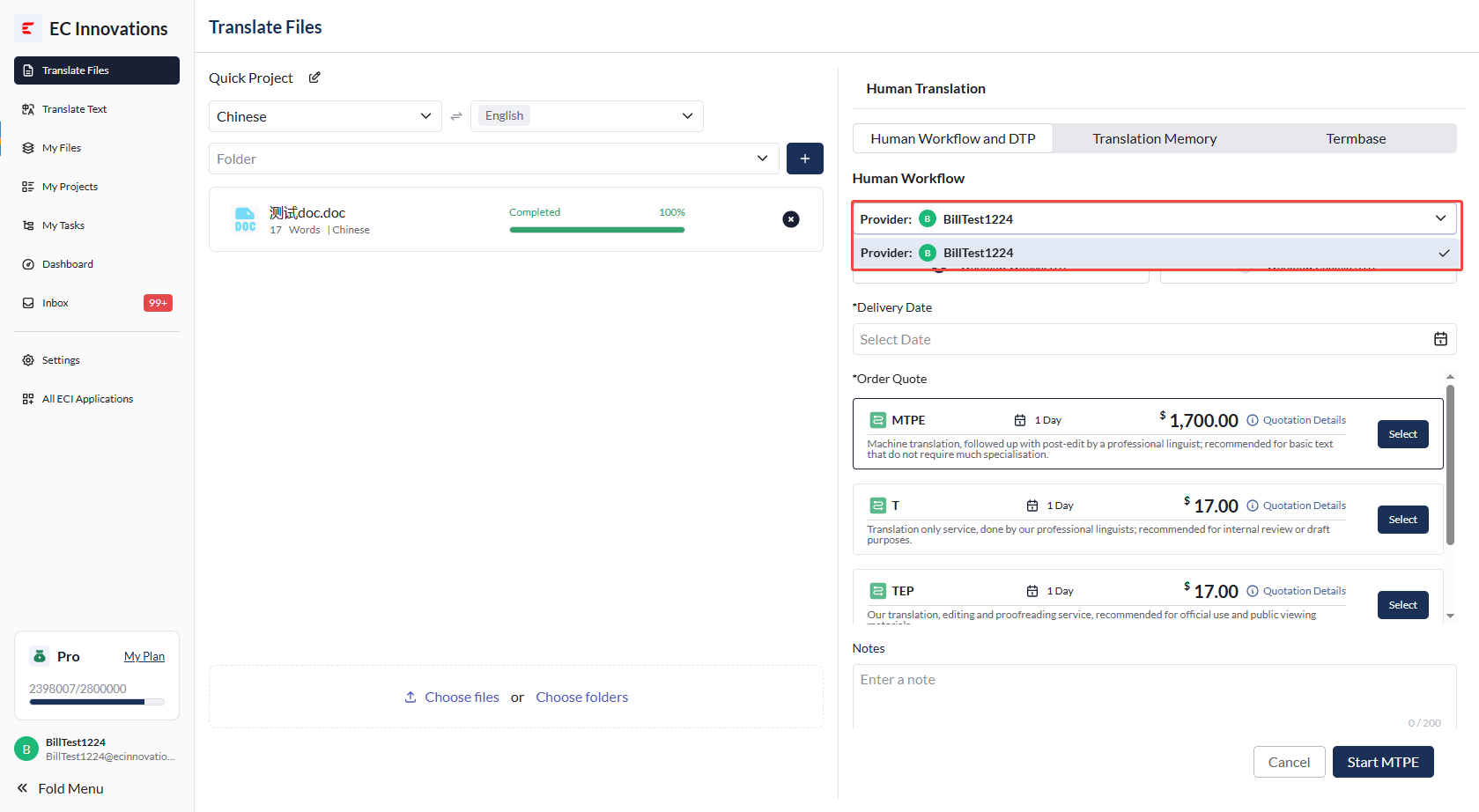
- A vendor must be selected for the human workflow. The first vendor is selected by default. To choose a different vendor, please contact us.
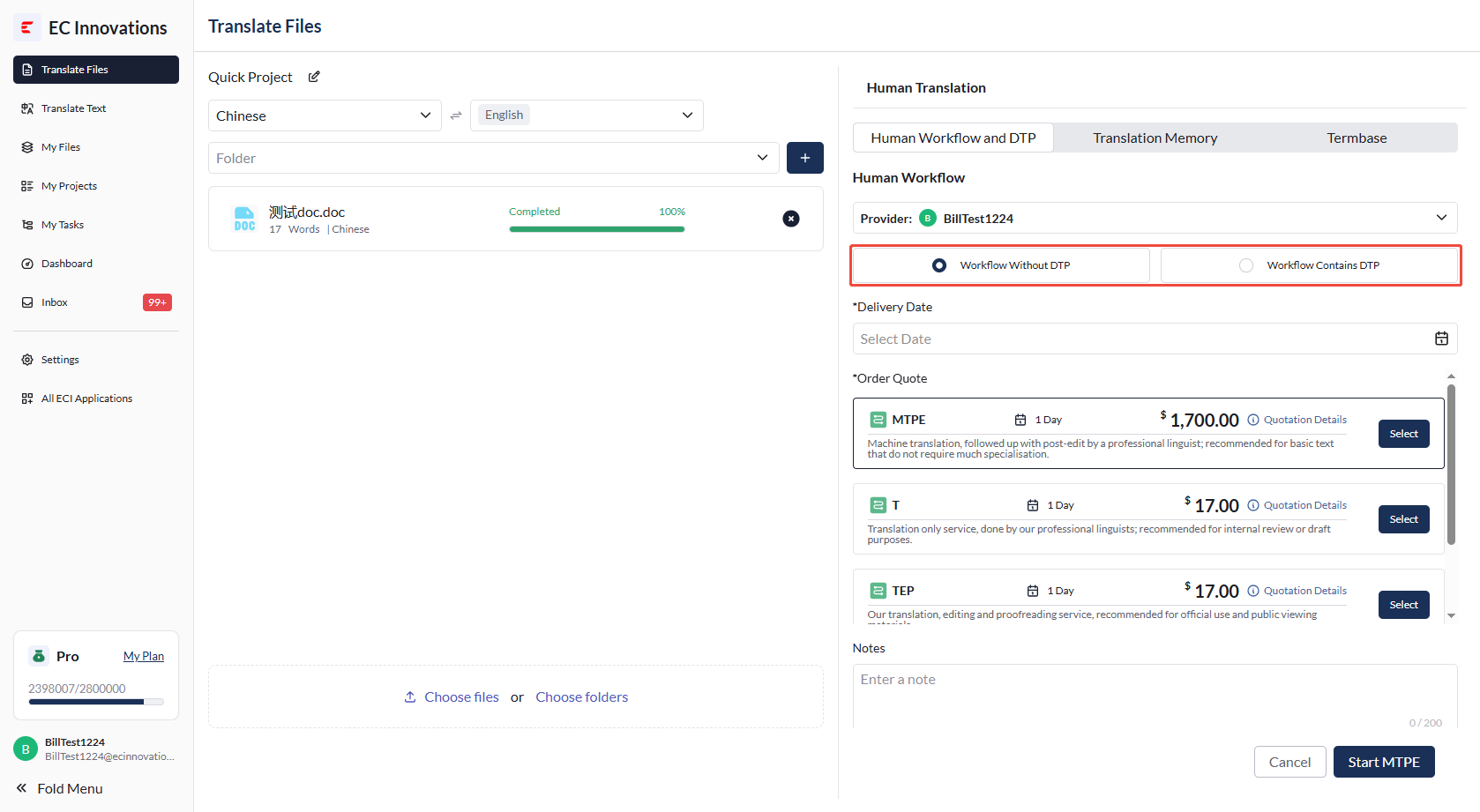
- You can choose whether to include DTP service.
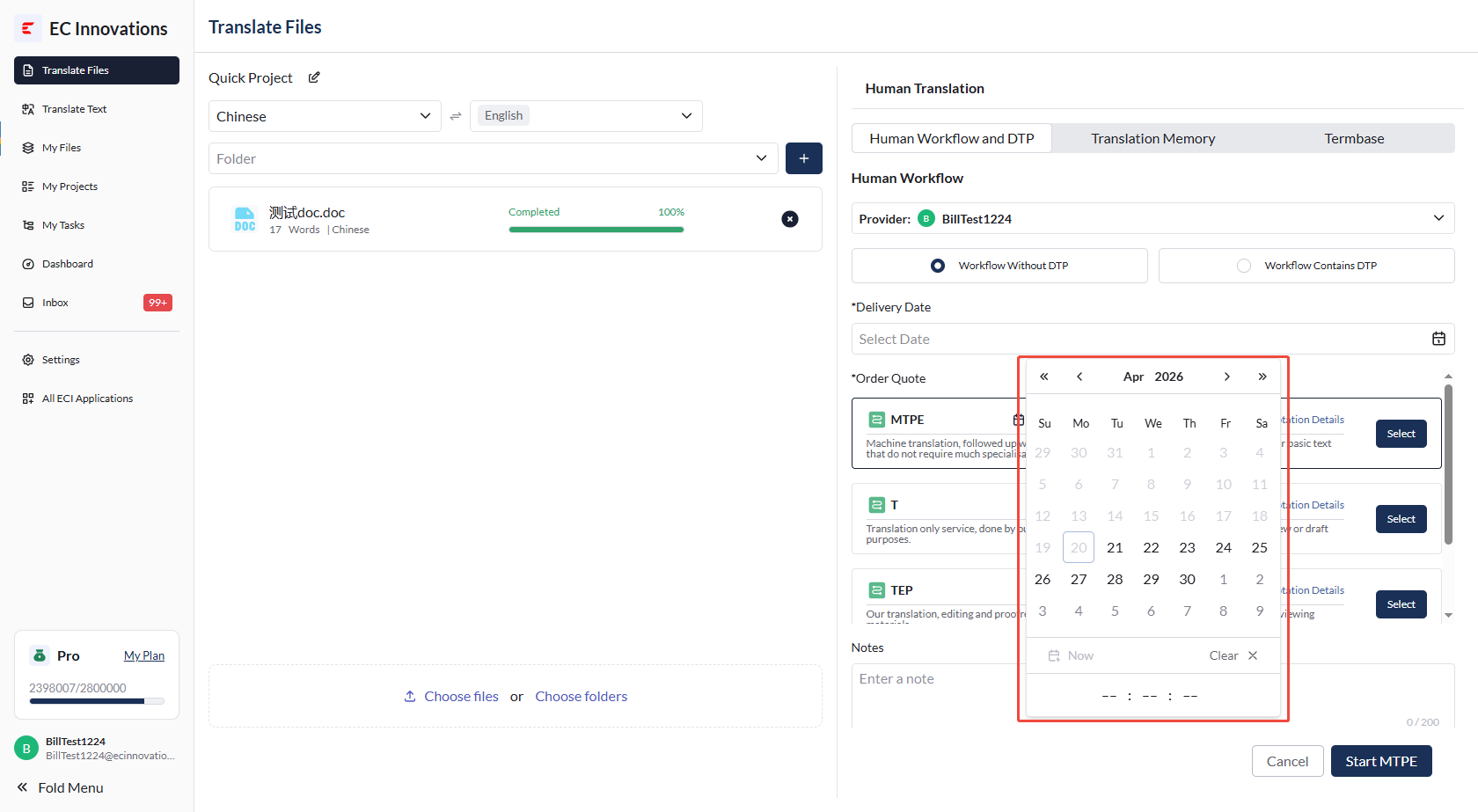
- You need to select the expected delivery date for the human workflow.
The following workflows are currently supported:
Workflow Description T A one-step workflow with human translation only. MTPEICR A three-step workflow: machine translation, human post-editing, and final expert review. MTPE A two-step workflow: machine translation followed by human post-editing. MT A one-step workflow with machine translation only. Click ‘Quotation Details’ to view the quotation details for the current workflow.
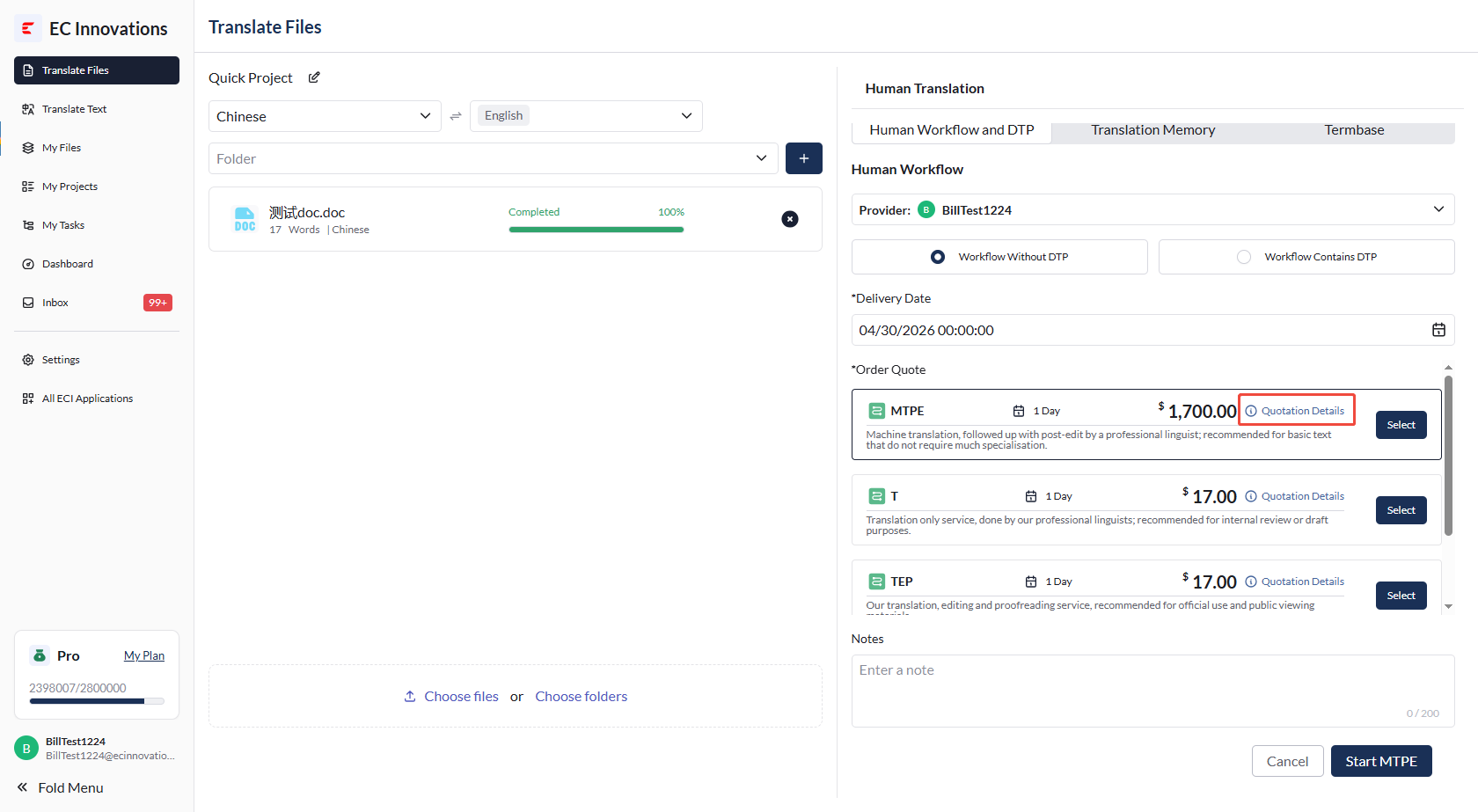
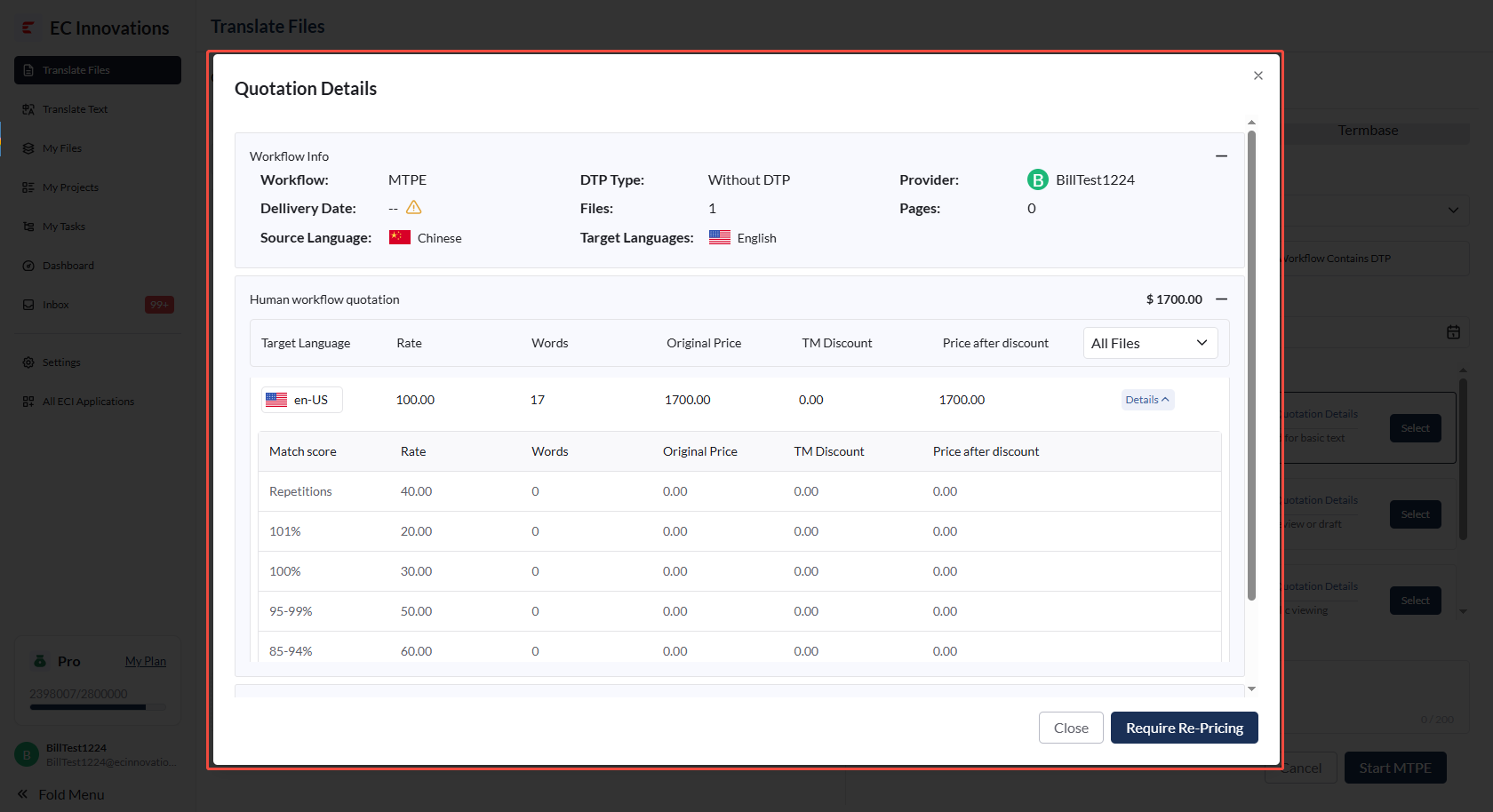
- If you have any questions about the current price, click ‘Require Re-Pricing’ to request price negotiation with the PM.
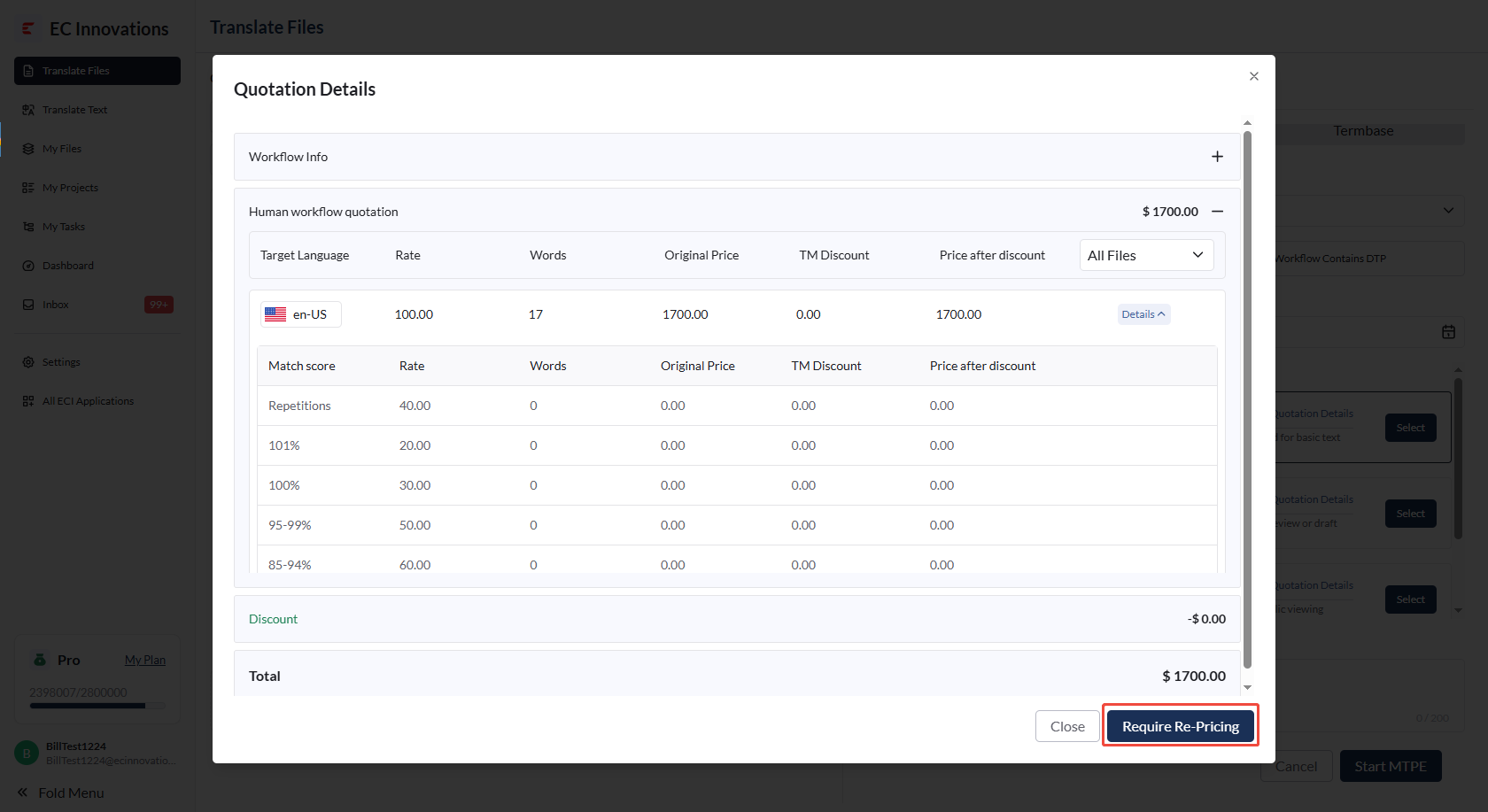
Note: If this is for internal use, you can handle the quotation separately or hide the quotation. If this is for external processing, quotation-related matters need to be included.
Apply Translation Memories
- Same as applying translation memories for AI Translation (Machine Translation).
Apply Termbases
- Same as applying termbases for AI Translation (Machine Translation).
Submit the Project
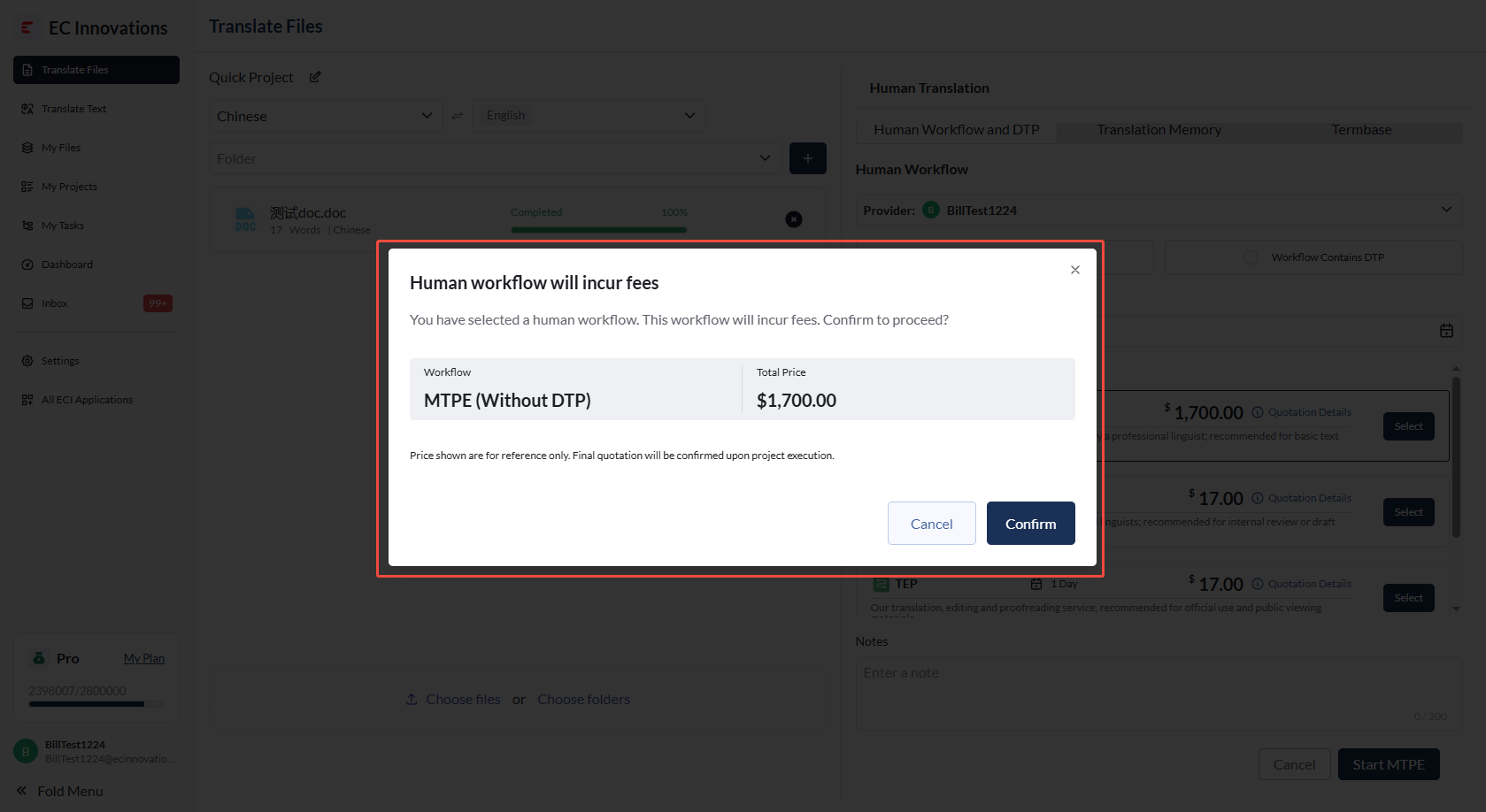
- Click ‘Start’ in the lower-right corner. A confirmation pop-up will appear.
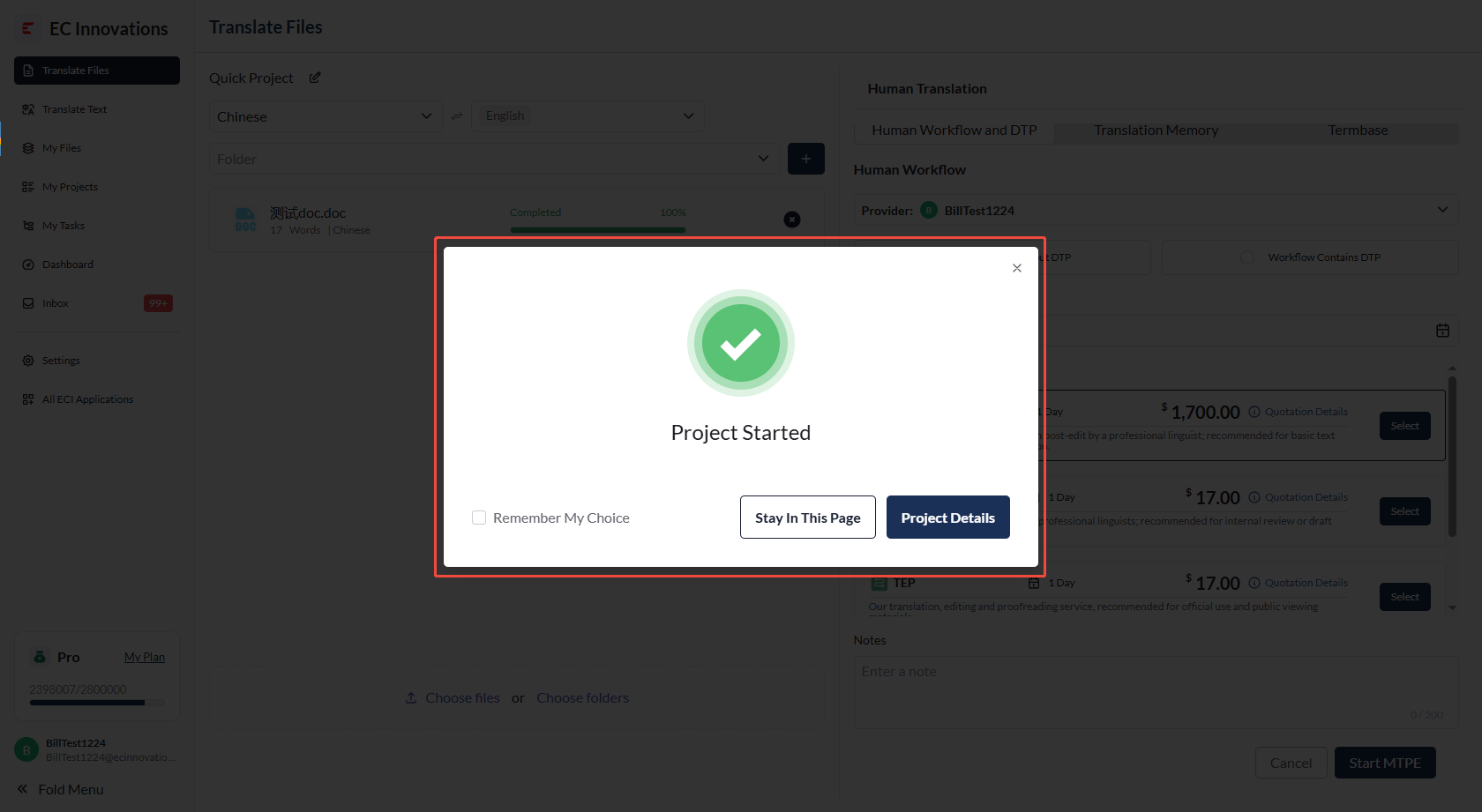
- After you confirm and submit the project, the platform will automatically generate a project number. You can either stay on the current page or go to the project details page.