Text Translate
Introduction
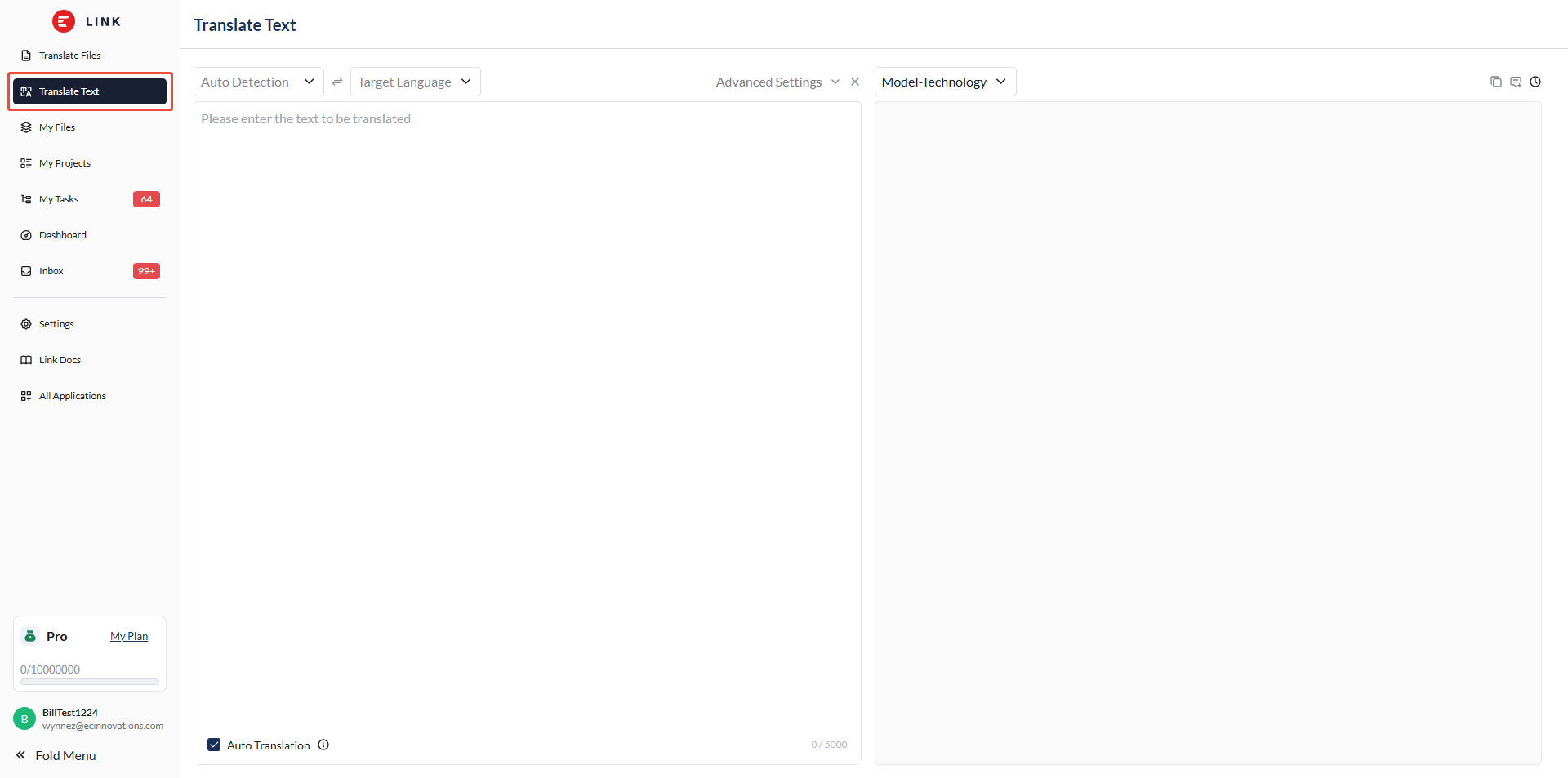
- Text Translation lets you type or paste text and view the source and translation side by side for easy comparison. With domain-specific models, term bases, and translation memories, it supports both everyday and specialized translation needs. Click 'Translate Text' in the left-hand menu to get started.
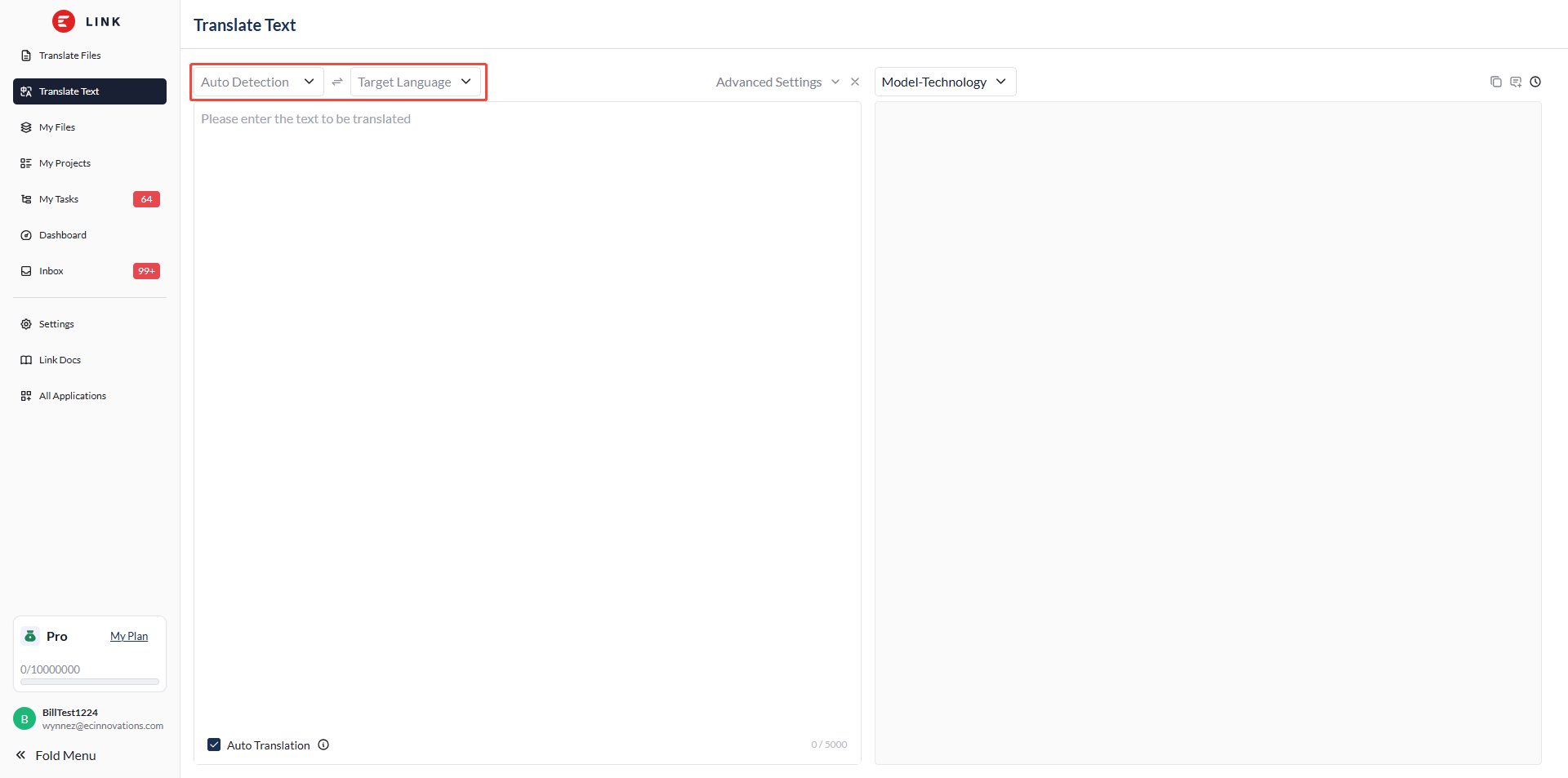
Language Settings
- The source language can be detected automatically or selected manually, along with the target language. A swap button allows users to quickly reverse the translation direction.
Text Input and Auto Translation
- Users can type or paste up to 5,000 characters into the source text box, with a character counter showing the current length. When Auto Translation is enabled, the system automatically translates the entered text and displays the result on the right.
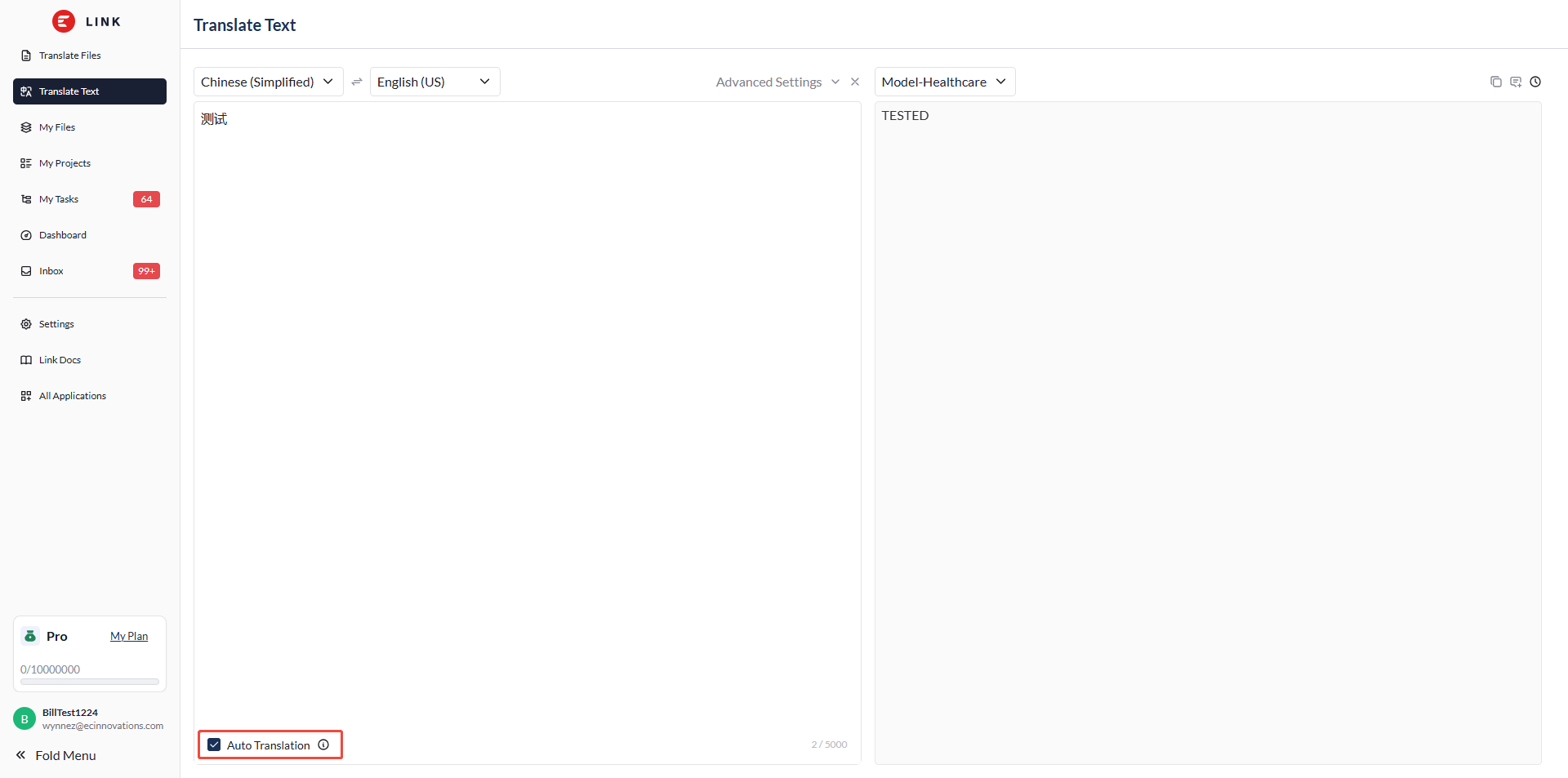
Domain-Specific Model Selection
- ou can select a translation model based on the subject matter of your text. The models available in the dropdown depend on the industry you selected during registration. For more information, please contact your administrator.
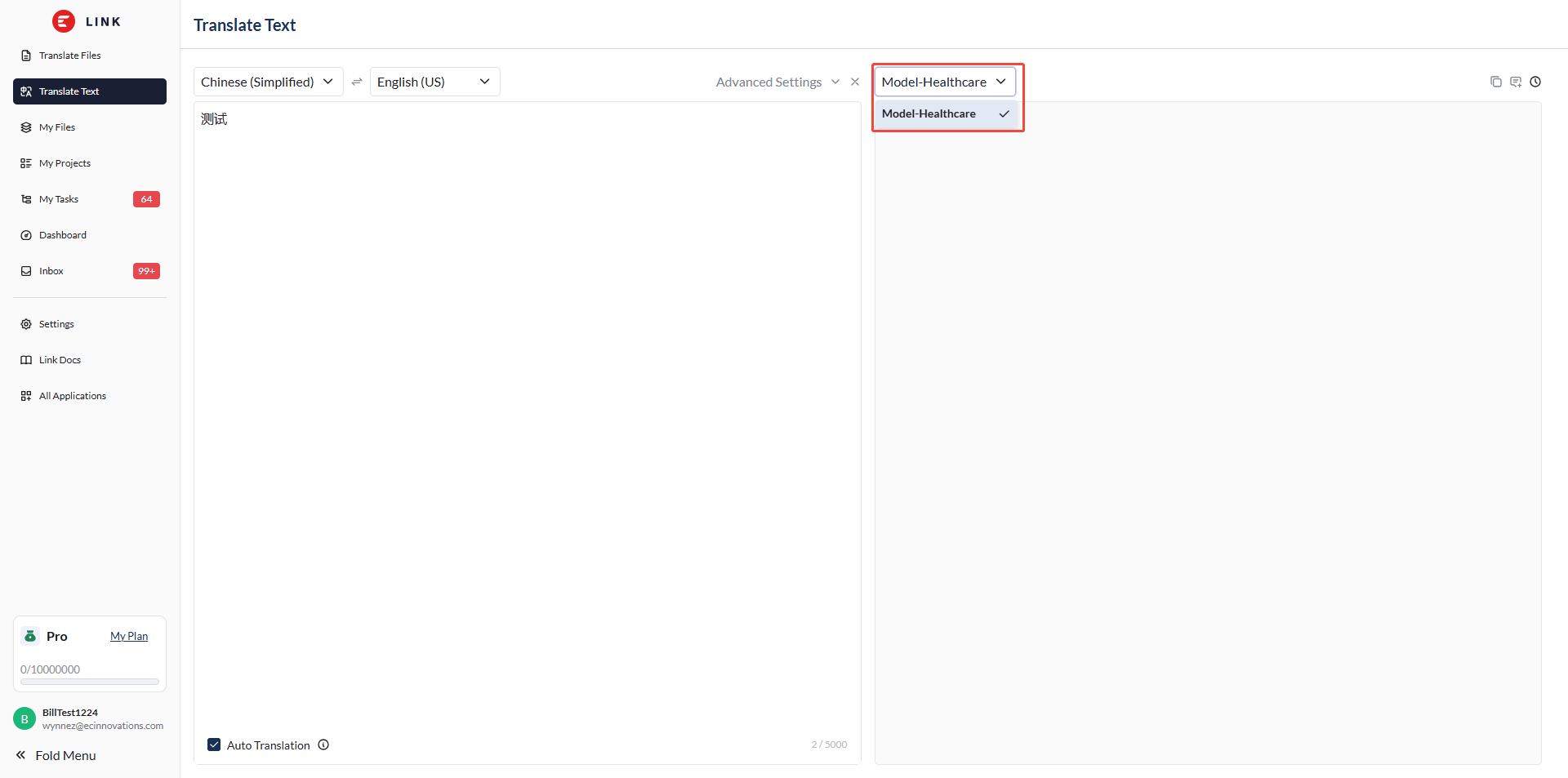
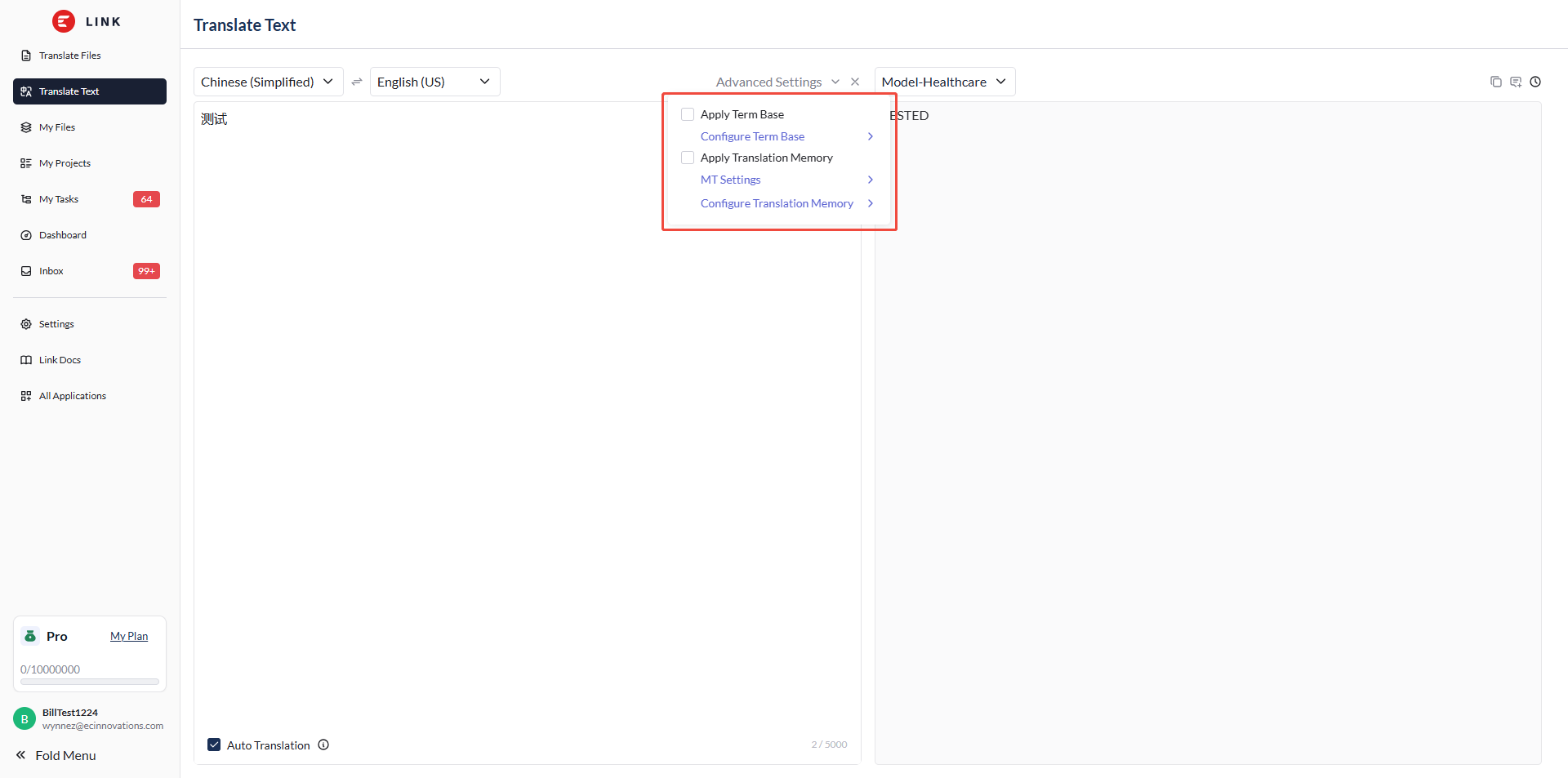
Advanced Settings
- Click 'Advanced Settings' to enable or disable term bases and translation memories as needed.
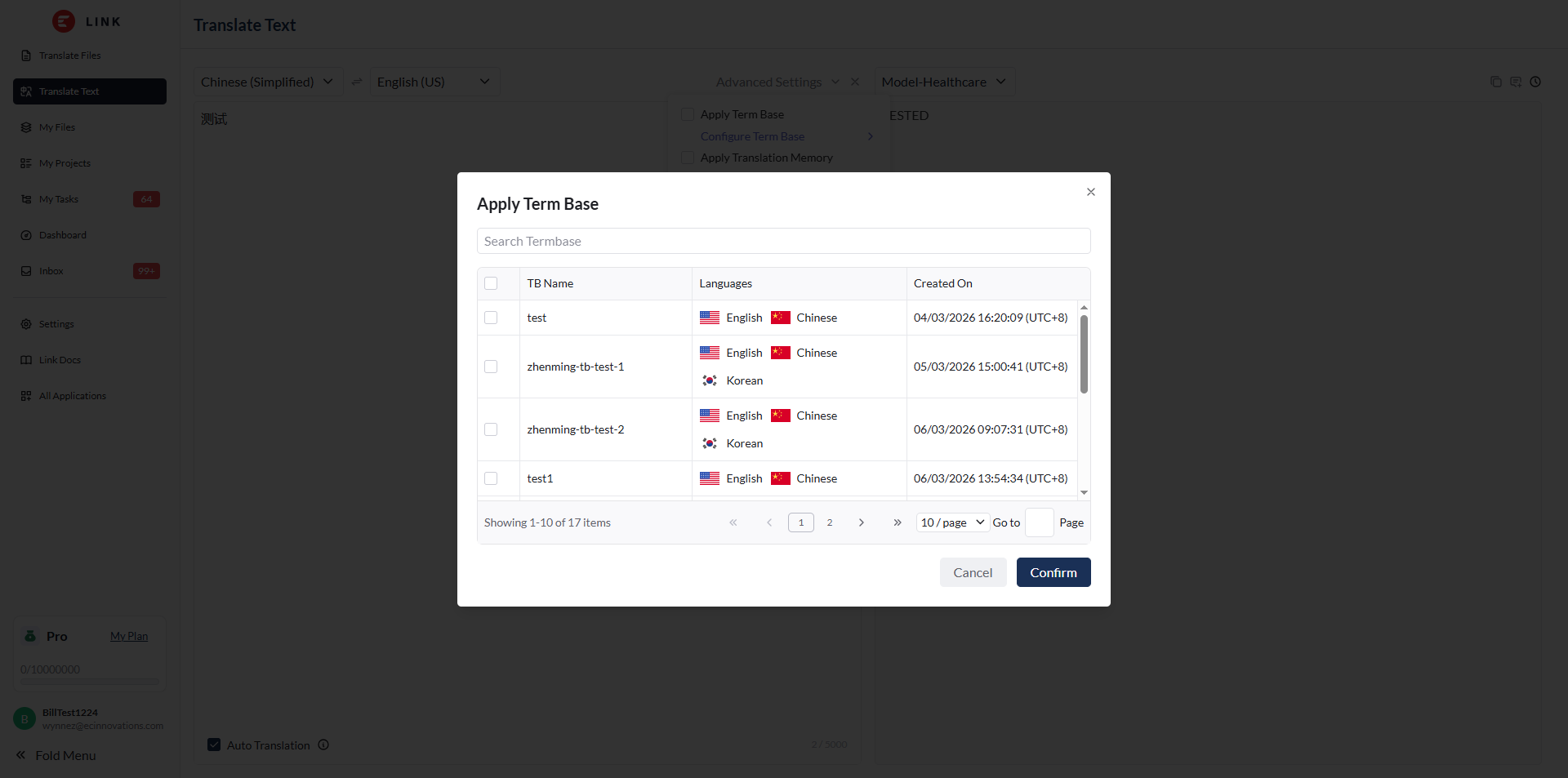
Term Base Application and Configuration
- Users can enable term bases in Advanced Settings, then search for, select, and apply the required resources to help maintain consistent technical terminology and brand language. The list displays each term base’s name, supported languages, and creation time, with multiple selection and pagination available.
Translation Memory Application and Configuration
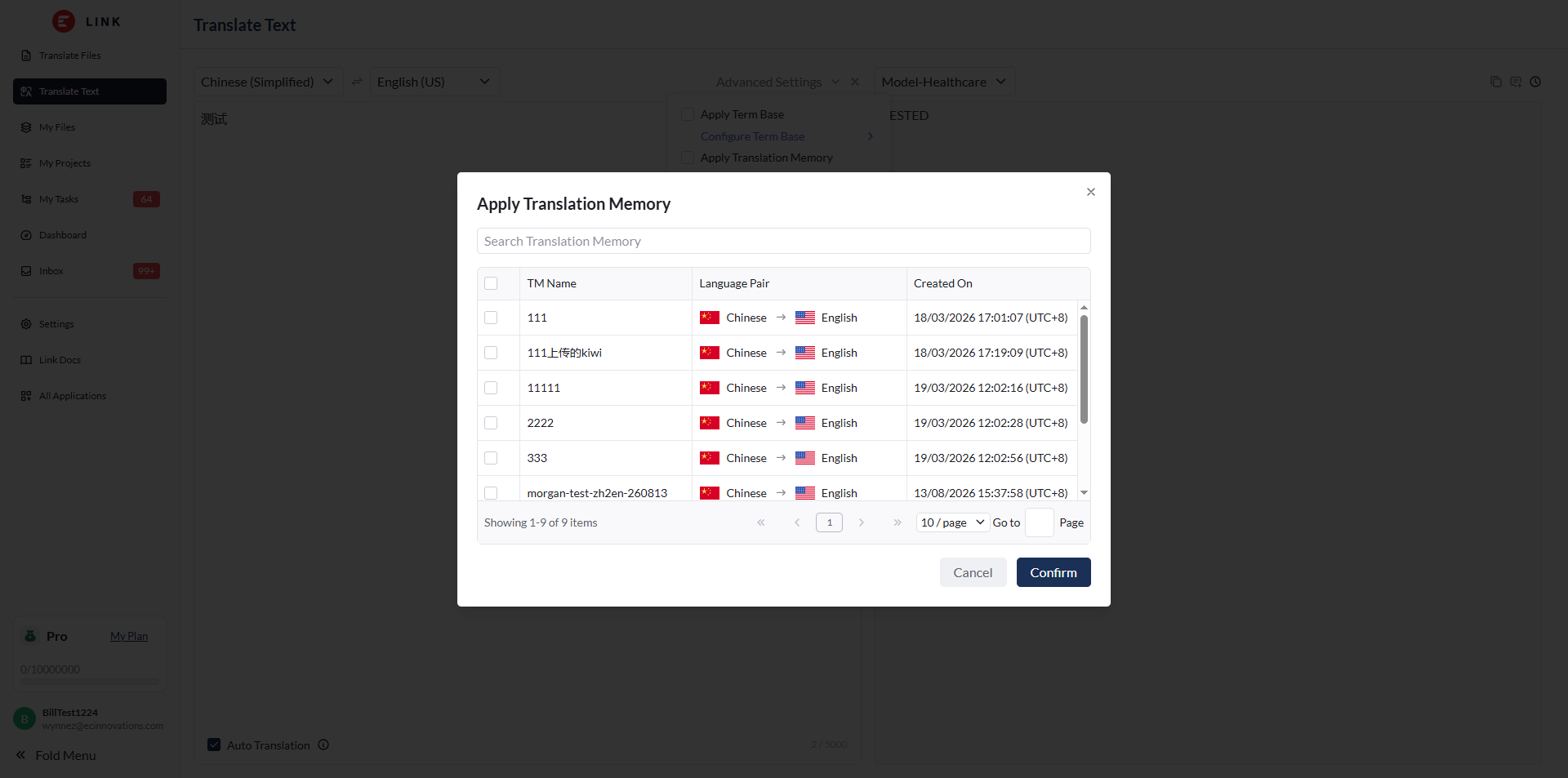
- Translation memories can be enabled to reuse existing translations, improving efficiency and consistency for repeated or similar content. Users can search for and select multiple translation memories, with each entry showing its name, language direction, and creation time.
AI Translate Settings
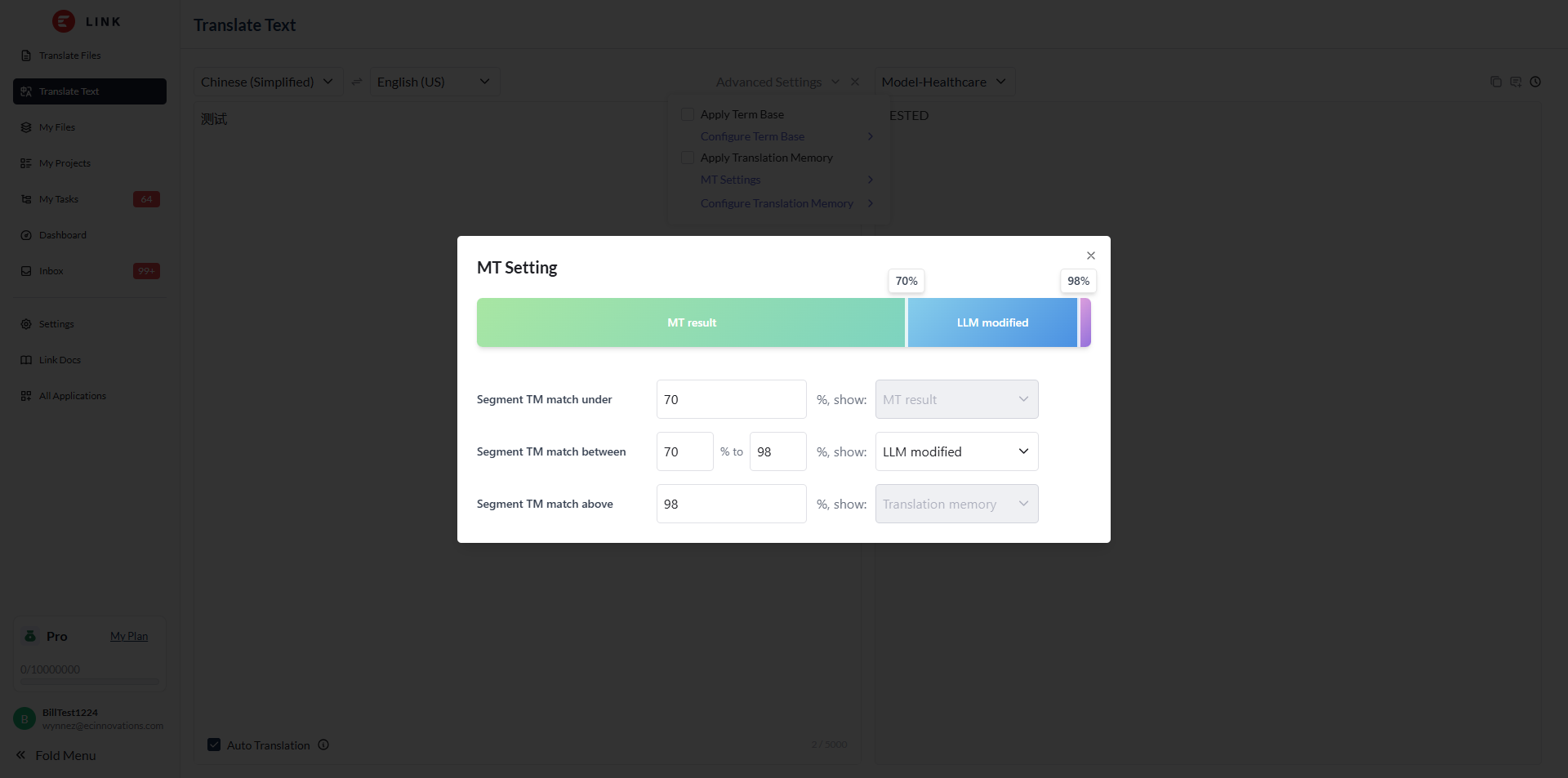
- For AI translation, customize whether to use translation memory, an LLM, or AI translation results based on the match level.
Copying and Quality Feedback
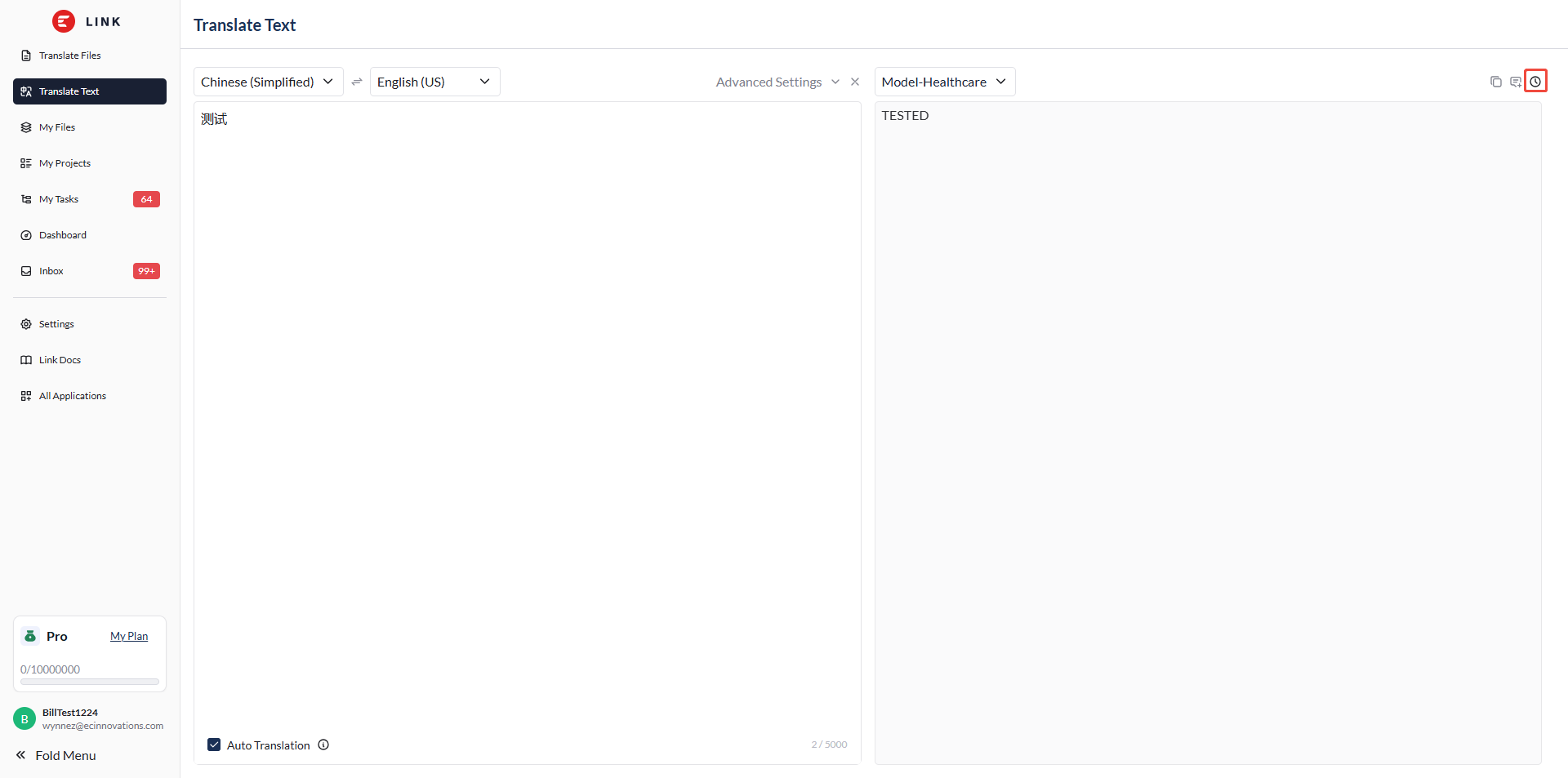
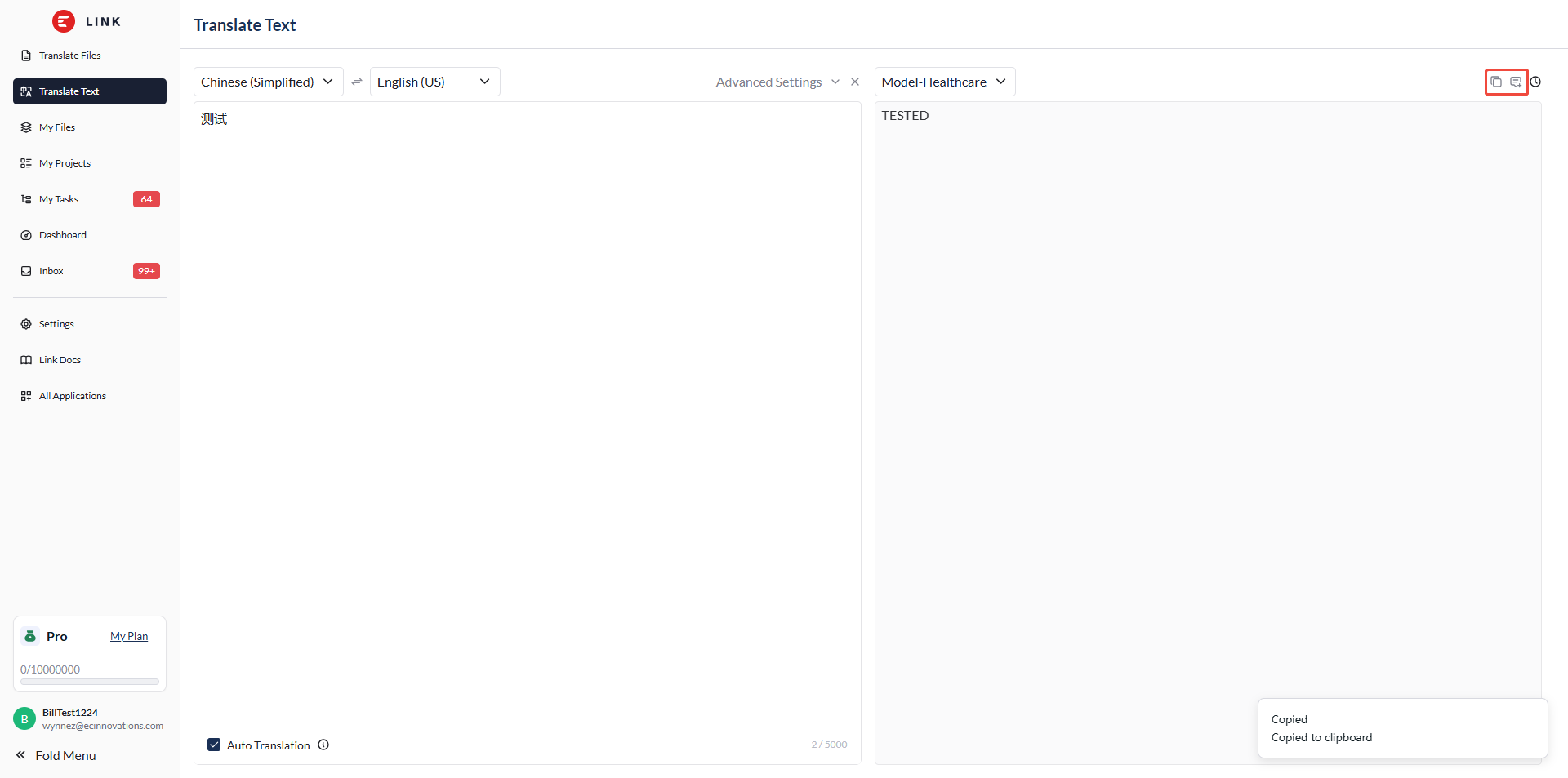
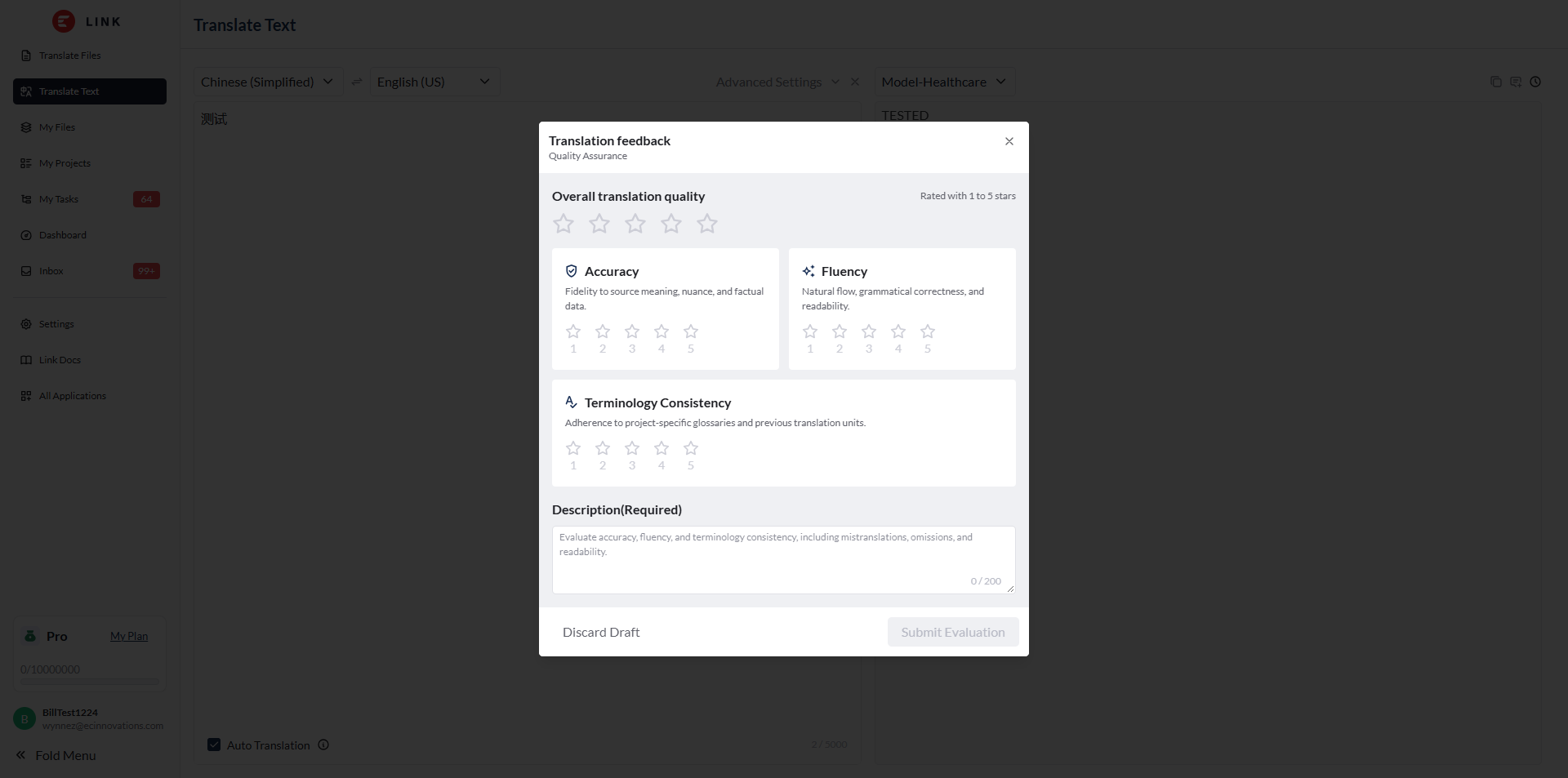
- Users can copy the translation for use elsewhere and submit translation quality feedback. Overall quality, accuracy, fluency, and terminology consistency can each be rated from 1 to 5 stars. A required description field allows up to 200 characters for explaining issues or providing comments.
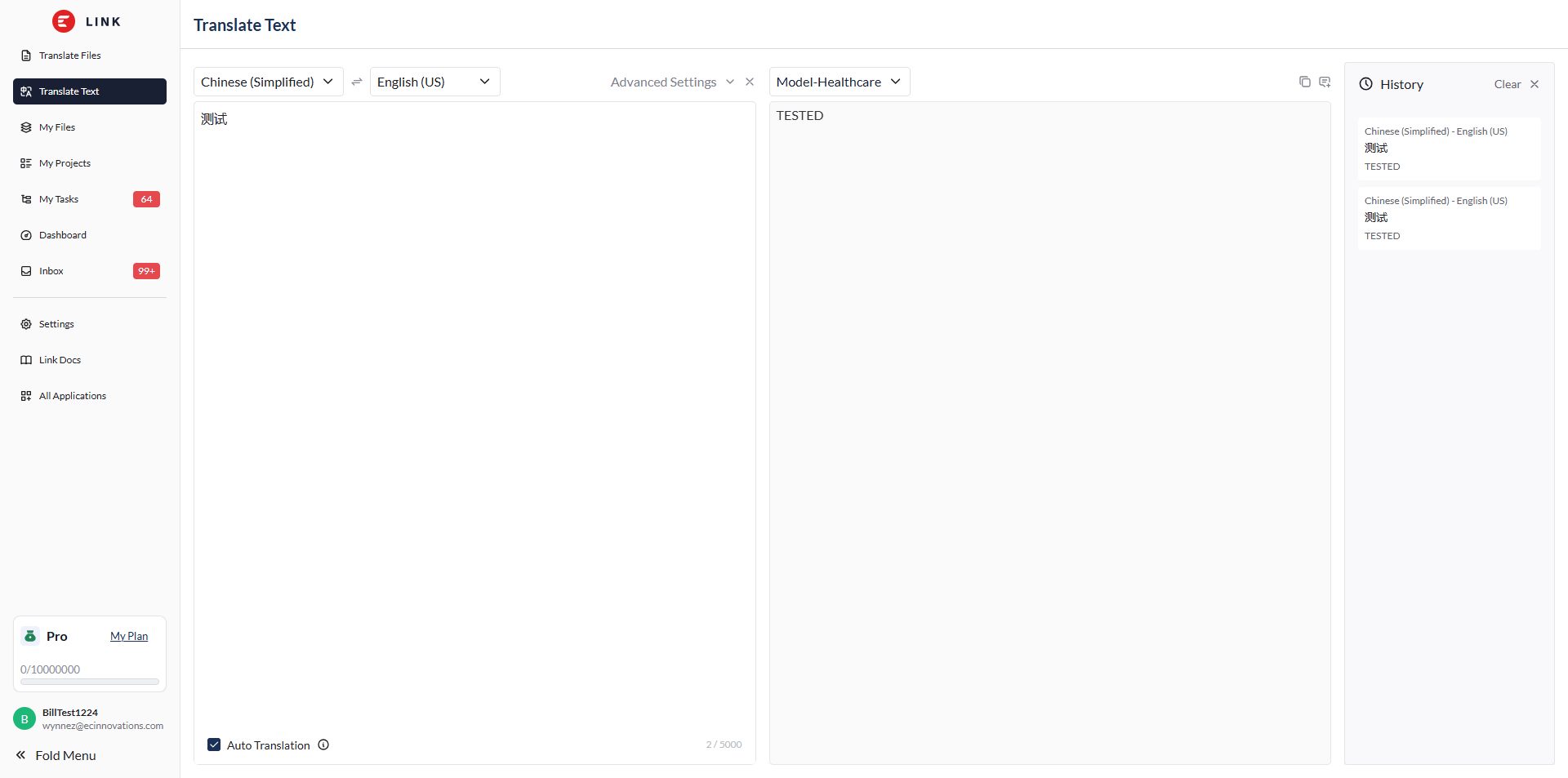
Translation History
- A history panel on the right displays previous translations, including the source and target languages, source text, and translated text. Users can clear the history or close the panel to expand the translation workspace.